Account settings let you configure your company profile and set sensible defaults that save your team time on every new lead. It’s worth spending a few minutes here when you first set up Proquiro.
Accessing settings
Click Settings at the bottom of the left sidebar.
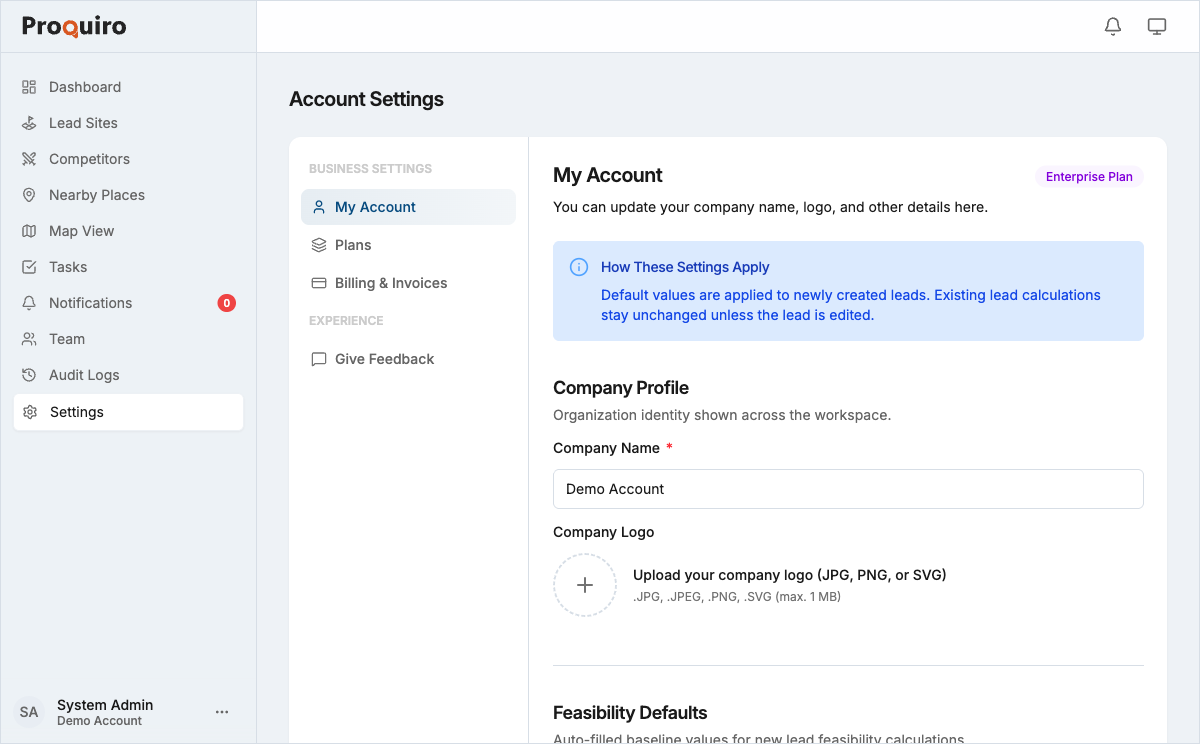
Company profile
Under Company Profile, you can update:
- Company name — appears on generated documents and reports, so make sure it matches your official name
- Logo — upload a PNG or JPG (recommended: 400×400px or larger, square). The logo is used in document headers and gives your exports a professional look.
Click Save after making changes.
Feasibility defaults
These values pre-populate the feasibility calculator for new leads. Setting them once here means your team doesn’t have to enter them on every lead — a real time-saver when you’re evaluating multiple sites.
| Field | Description |
|---|---|
| Target margin | Minimum acceptable net margin (%) for a project to be viable |
| Layout saleable % | Percentage of total land area that can be sold after deductions |
| FSI | Default floor space index (adjust per project as needed) |
| Construction cost | Base cost per sq ft of built-up area (₹) |
| Development cost | Ancillary development cost per sq ft (₹) |
| Risk factor | A multiplier applied to costs to account for project risk |
These are defaults only — you can override any value on an individual lead’s feasibility page.
Tip: Review these defaults quarterly. Construction costs and market conditions change, and stale defaults can skew your feasibility numbers without anyone noticing.
Market benchmark defaults
These settings control how Proquiro selects comparable transactions when benchmarking a lead’s pricing against the market. Getting these right ensures your benchmarks are meaningful rather than misleading.
| Field | Description |
|---|---|
| Radius | Search radius (in km) for nearby comparable transactions |
| Freshness window | Maximum age of comparable transactions to include (in months) |
| Minimum comparables | Minimum number of comparables required before showing a benchmark |
If fewer comparables than the minimum threshold are found, the benchmark panel will indicate insufficient data rather than showing a potentially misleading figure.
Click Save to apply changes. Updated defaults apply to new leads; existing lead benchmarks are recalculated on next view.
Tip: In fast-moving markets, a shorter freshness window (e.g., 6 months) gives you more relevant comps. In slower markets, a longer window (12–18 months) ensures you have enough data to work with.