The Audit Logs page records every significant action taken by team members in your Proquiro account — lead changes, document uploads, status transitions, team updates, and more. It’s your single source of truth for understanding who did what and when.
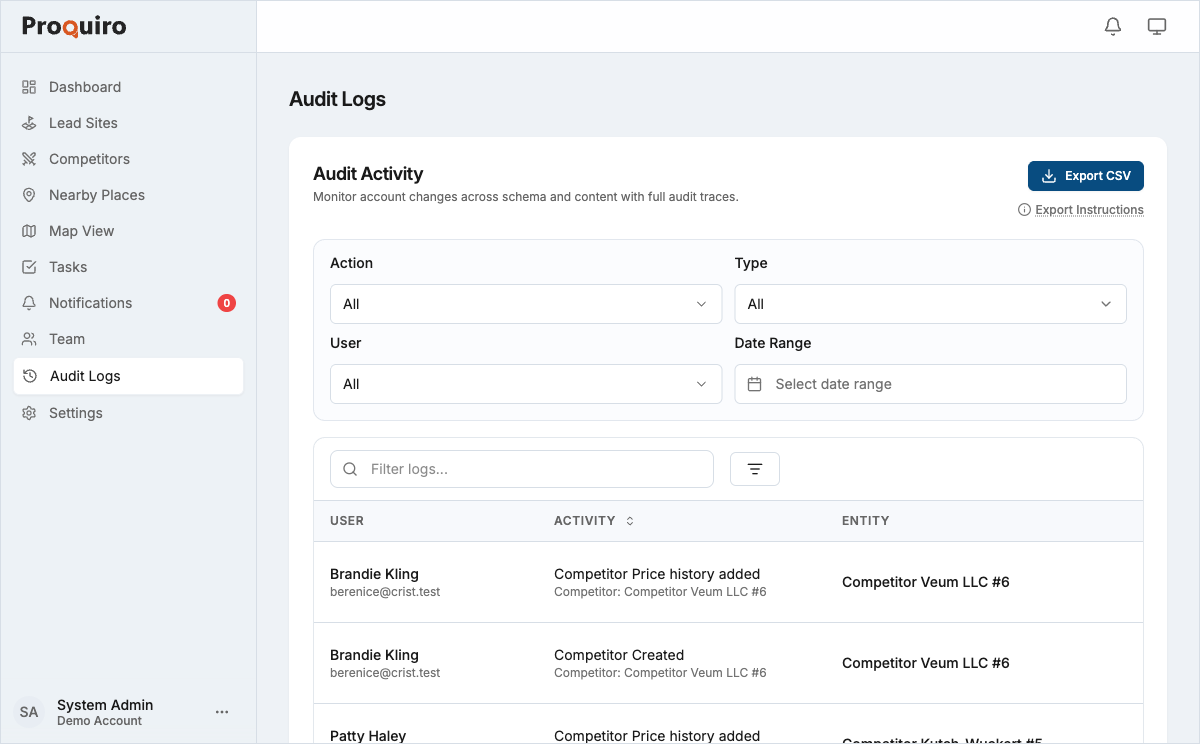
Accessing audit logs
- Go to Audit Logs in the sidebar.
- The page displays a chronological list of events, newest first.
Each entry shows:
- Action — what happened (e.g. “Lead status changed to Shortlist”)
- User — who performed the action
- Timestamp — when it occurred
- Details — the affected resource (lead site, document, task, etc.)
Tip: If something looks off on a lead — a missing document or an unexpected status change — audit logs are the fastest way to figure out what happened.
Filtering the log
Use the filters at the top of the page to narrow results by:
- User — show actions by a specific team member (useful for reviewing someone’s recent activity)
- Action type — filter to specific events (status changes, document actions, etc.)
- Date range — focus on a particular time window
Combine filters to zero in on exactly what you’re looking for. For example, filter by a specific user and a date range to review their activity during a particular week.
Exporting audit logs
- Apply any filters you need.
- Click Export CSV.
- A CSV file downloads containing the filtered log entries.
The export includes all visible columns and respects your active filters — only matching entries are included. This is handy for compliance reporting or sharing activity summaries with stakeholders who don’t have Proquiro access.
Who can access audit logs
Only Owner and Admin roles can view the Audit Logs page. Managers, Field Executives, and Lead Assistants do not have access. This keeps sensitive activity data visible only to those who need it for oversight.