Your profile is what your team sees — your name, email, and avatar appear on lead assignments, comments, and activity logs. Keeping it up to date helps everyone know who’s who.
Accessing your profile
- Click Settings in the left sidebar.
- Select Profile from the settings menu.
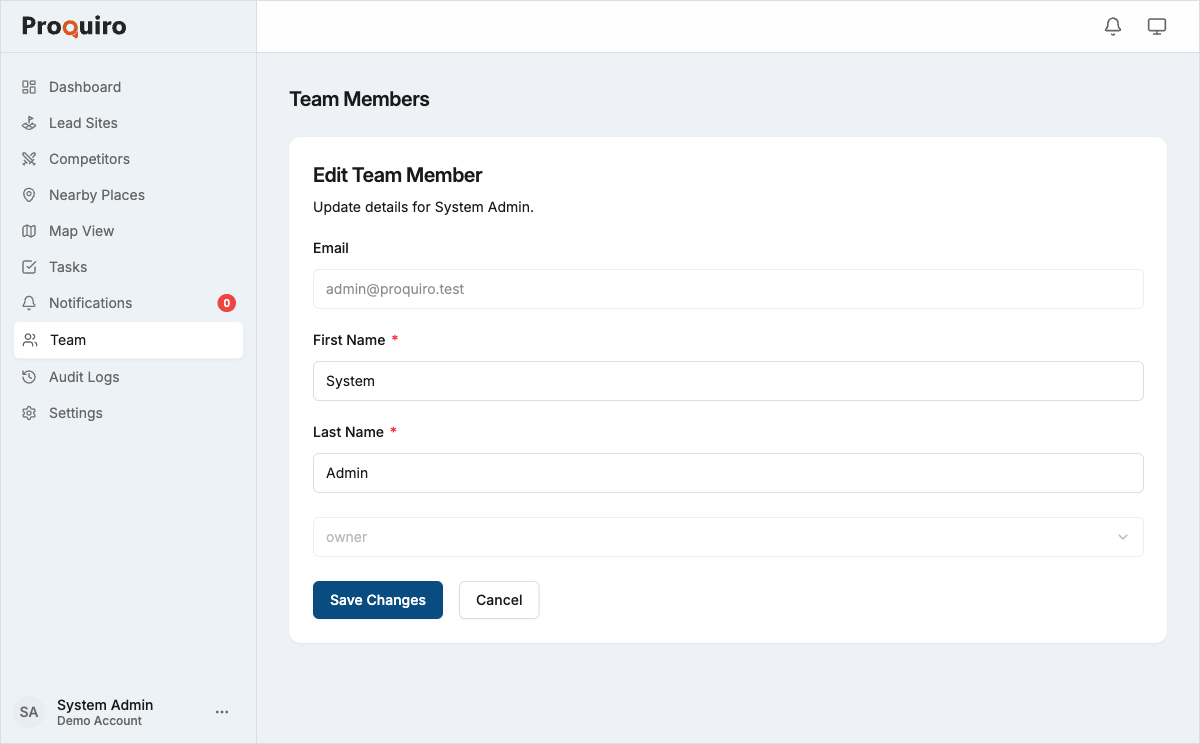
Updating your name and email
- Go to Settings > Profile.
- Edit the Full name and Email address fields.
- Click Save changes.
If you change your email address, a verification link is sent to the new address. The change takes effect once you click the link. Until then, your original email remains active — so there’s no risk of losing access.
Tip: Use a consistent name format across your team (e.g., full first and last name). It makes lead assignment and activity tracking much easier to scan.
Changing your password
- Go to Settings > Profile.
- Scroll to the Password section.
- Enter your Current password.
- Enter and confirm your New password.
- Click Update password.
Passwords must be at least 8 characters. Use a combination of letters, numbers, and symbols for a stronger password.
If you’ve forgotten your current password, sign out and use the Forgot password link on the login page to reset it via email.
Google sign-in
If your account was created or linked with Google Sign-In, your profile page shows a Google account linked indicator.
Linked accounts
When Google is linked, you can sign in with either your Google account or your Proquiro email and password (if a password has been set). To set a password for the first time on a Google-linked account, use Forgot password on the login page.
Tip: Even if you primarily use Google Sign-In, setting a Proquiro password gives you a backup login method if Google is ever unavailable.
Unlinking Google
Contact Proquiro support to unlink a Google account from your profile. Unlinking is only possible if a Proquiro password has already been set, so you always retain a way to sign in.