Your billing history and invoice downloads live in one place, making it easy to stay on top of payments and keep your finance team happy.
Viewing invoices
- Open Settings from the left sidebar.
- Select Billing & Invoices.
The page lists all invoices in reverse chronological order, showing the invoice date, amount, and payment status (Paid, Pending, or Failed).
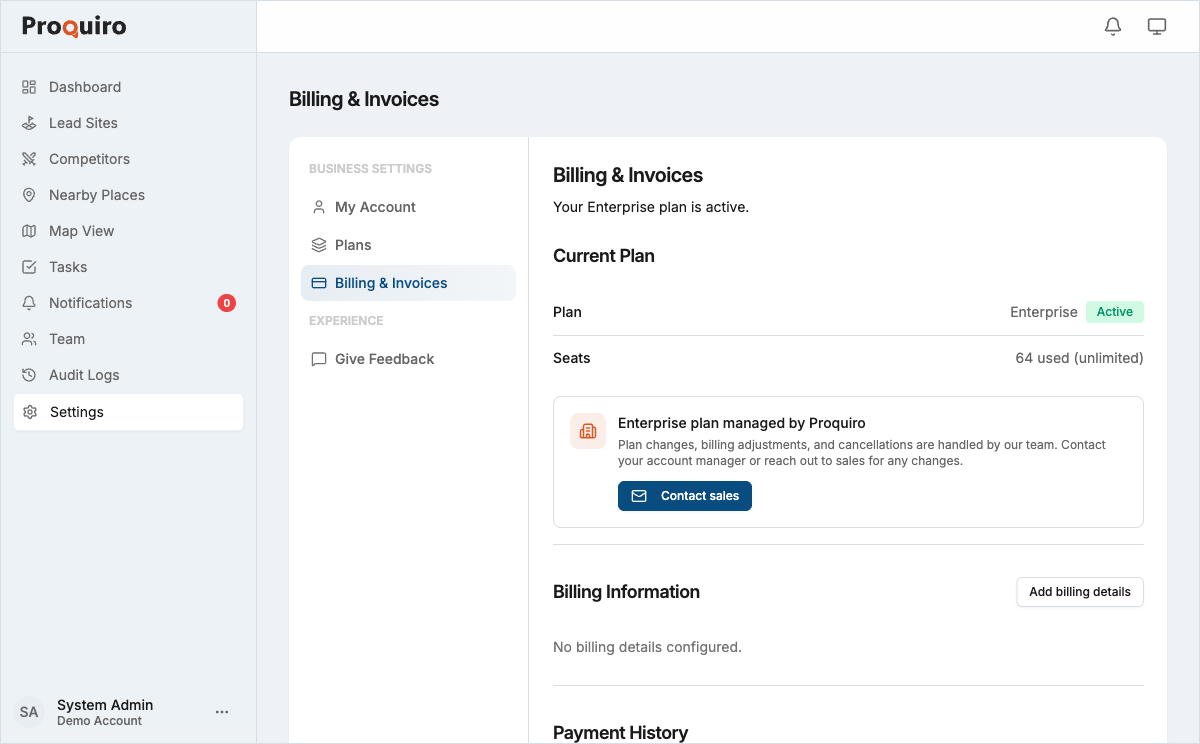
Downloading invoice PDFs
- Go to Settings → Billing & Invoices.
- Locate the invoice you need.
- Click the Download PDF icon on the right side of the invoice row.
The PDF downloads immediately and includes your company name, billing address, plan details, and tax information. If you need to update the billing name or address that appears on invoices, update your company profile under Settings → Company Profile.
Tip: Download invoices promptly at the end of each billing cycle if your finance team needs them for monthly reconciliation. Previously issued invoices won’t reflect billing detail changes.
Managing your subscription
Cancelling your subscription
- Go to Settings → Billing & Invoices.
- Click Cancel Subscription.
- Confirm the cancellation.
Your subscription remains active until the end of the current billing period. After that, your account moves to a read-only state — you can still view existing leads and data but cannot add new ones. Nothing is deleted.
Resuming a cancelled subscription
If you cancelled and the billing period hasn’t ended yet:
- Go to Settings → Billing & Invoices.
- Click Resume Subscription.
Your subscription continues without interruption — it’s as if the cancellation never happened.
Changing your plan
To switch plans, go to Settings → Plans. See Plans and Pricing for details.
Updating billing details
- Go to Settings → Billing & Invoices.
- Click Edit (or the edit icon next to your billing information).
- Update your company name, billing address, GST number, or payment method.
- Click Save.
Changes to billing details apply to future invoices only. Previously issued invoices are not affected, so make sure your details are correct before the next billing cycle.
Payment failures
If a payment fails, Proquiro retries automatically over the following days. You’ll receive an email notification with details. To fix it, click Update Payment Method in Settings → Billing & Invoices and enter a valid card.
Tip: If you see a “Failed” status on an invoice, update your payment method right away. Repeated failures can interrupt your team’s access.