All plan changes — upgrades, downgrades, interval switches, and cancellations — are handled from the Settings → Billing section. Only the account owner (admin) can make billing changes.
Enterprise accounts are managed directly by the Proquiro team. If you’re on Enterprise, contact your account manager or email sales@proquiro.com for any changes.
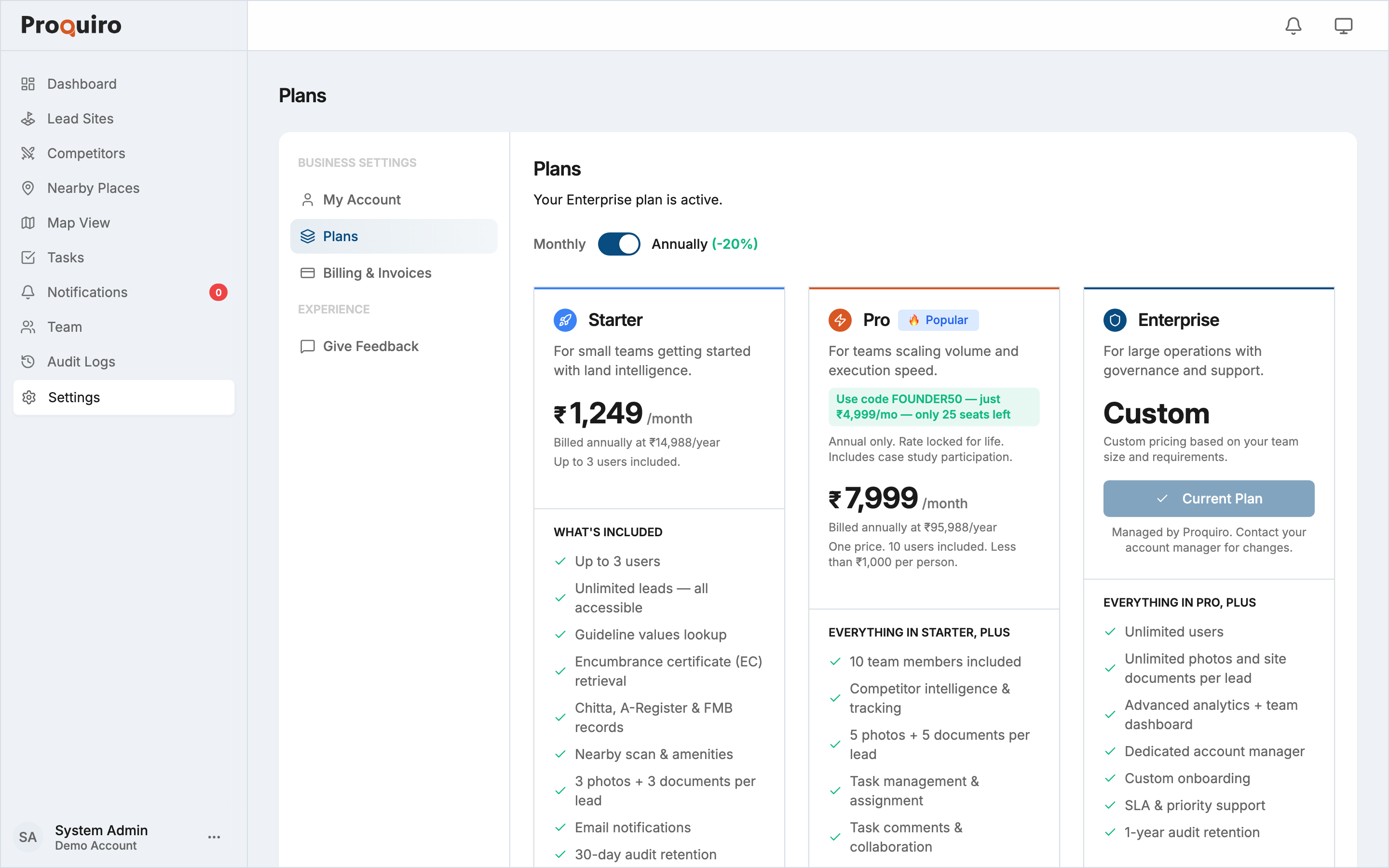
Current pricing
| Plan | Monthly | Annual (per month) | Annual total | Users |
|---|---|---|---|---|
| Solo | ₹799 | ₹639 | ₹7,668/yr | 1 |
| Team | ₹4,999 | ₹3,999 | ₹47,988/yr | 5 |
| Pro | ₹9,999 | ₹7,999 | ₹95,988/yr | 10 |
| Enterprise | Custom | — | — | Unlimited |
Annual billing saves 20% — pay upfront for the year and you get two months effectively free vs. paying month-to-month.
Upgrading to a higher tier
- Go to Settings → Plans.
- Toggle between Monthly and Annual billing using the switch at the top.
- Click Subscribe on the card for the plan you want.
- You’ll be redirected to checkout. Complete payment to activate the plan.
The new plan activates immediately. You’re charged the prorated difference for the remainder of the current billing cycle — you only pay for the days remaining at the new rate. Your billing date stays the same.
Switching between monthly and annual billing
You can switch billing interval without changing your plan tier.
- Go to Settings → Plans.
- Toggle the Monthly / Annual switch.
- A Switch to Annual (or Switch to Monthly) button appears on your current plan card.
- Click it and confirm the change.
The switch takes effect immediately with prorated charges applied.
Downgrading
Downgrading is supported as a direct self-service action.
- Go to Settings → Plans.
- On a lower-tier card, click Downgrade.
- Read and confirm the dialog.
Downgrades take effect immediately and your billing date stays the same. You aren’t charged anything new — the unused value on your current plan becomes subscription credit that automatically reduces future renewals.
Important:
- No cash refund. Credit is non-refundable. If you cancel the subscription, any unused credit is forfeited.
- Seat fit. Verify your team size fits the lower plan’s seat limit before downgrading. Solo is 1 user, Team is 5, Pro is 10. If your team has more active users than the new plan allows, go to Settings → Team and deactivate the extra members first — otherwise the change will be blocked.
- Feature access. Downgrading removes access to features only available on higher tiers (e.g. team seats and tasks on Solo; tasks, heatmaps, advanced market analysis, and 100-row imports on Team).
Cancelling your subscription
- Go to Settings → Billing.
- Click Cancel subscription (visible when your subscription is active).
- Confirm the cancellation in the dialog.
When your subscription is cancelled (or a payment fails), your account moves to read-only mode — your data stays safe, but writes are blocked until you resubscribe. Nothing is ever deleted. Leads, documents, maps, audit logs, and team setup are preserved indefinitely.
Resuming a cancelled subscription
If you cancelled but change your mind before the billing period ends, you can undo it.
- Go to Settings → Billing.
- Click Undo cancellation.
Your subscription is immediately restored and will renew as normal at the next billing date. No new checkout or payment is required.
Proration on upgrades and interval switches
When you upgrade or switch billing intervals mid-cycle, Proquiro calculates a prorated charge based on the days remaining in your current period. You won’t be double-charged for time you’ve already paid for, and unused time on your previous plan is applied as credit toward the new charge.
Where to find billing settings
| What you need | Where to go |
|---|---|
| View current plan and status | Settings → Billing |
| Change or upgrade your plan | Settings → Plans |
| Downgrade or switch billing interval | Settings → Plans |
| Cancel or resume a subscription | Settings → Billing → Cancel subscription / Undo cancellation |
| Update billing address, GSTIN, or PAN | Settings → Billing → Edit billing details |
| Download past invoices | Settings → Billing → Payment History |
For Enterprise pricing or custom contracts, contact sales@proquiro.com.