Your plan determines how many users your workspace supports, along with which features are available. Every plan has unlimited leads — what changes between tiers is team size, document/photo limits, advanced intelligence (heatmaps, market analysis), and audit retention. As your team grows, switching plans is immediate and prorated.
The four plans
| Plan | Monthly | Annual (per month) | Annual total | Users |
|---|---|---|---|---|
| Solo | ₹799 | ₹639 | ₹7,668/yr | 1 |
| Team | ₹4,999 | ₹3,999 | ₹47,988/yr | 5 |
| Pro | ₹9,999 | ₹7,999 | ₹95,988/yr | 10 |
| Enterprise | Custom | — | — | Unlimited |
Annual billing saves 20% — paying upfront for the year is the equivalent of two months free vs. month-to-month.
Positioning:
- Solo — for individual founders, land buyers, and consultants doing land due diligence.
- Team — for small acquisition teams that need lead tracking, competitor edits, and bulk imports.
- Pro — for growing teams that need advanced intelligence (heatmaps, market analysis) and higher limits.
- Enterprise — for large operations with governance, dedicated account management, and SLAs.
Viewing available plans inside the app
- Go to Settings in the sidebar.
- Select Plans (or navigate directly to the Plans page from the billing section).
You’ll see all available Proquiro plans side by side with their included features and pricing.
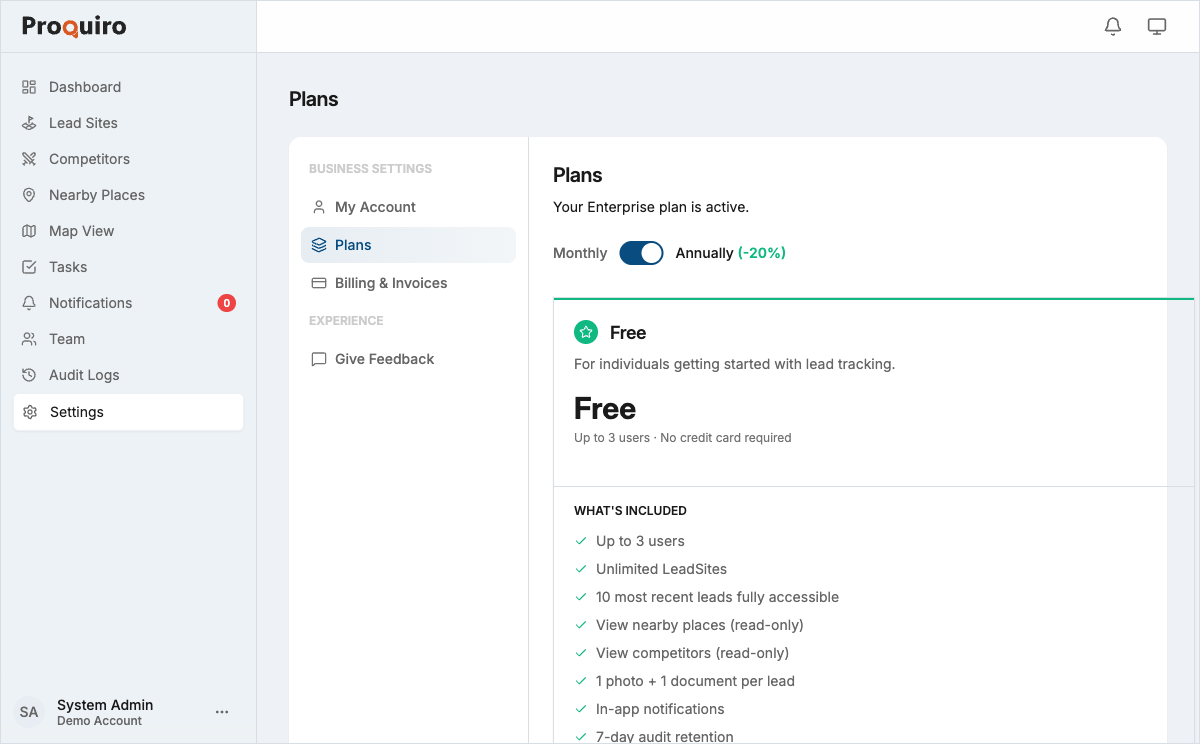
Plan comparison details
Each plan displays:
- Number of users included
- Feature access — Maps, Competitor Intelligence, Tasks, Heatmaps, and more
- Document and photo limits per lead
- Audit log retention span (30 days → 1 year by tier)
- Current plan is highlighted with an active badge so you can see exactly where you stand
Tip: Heatmaps, tasks, market-analysis depth, and bulk-import row limits are the biggest tier-to-tier differences. Use those as upgrade signals rather than user count alone.
Upgrade your plan
- Go to Settings → Plans.
- Find the plan you want to upgrade to.
- Click Subscribe.
- Confirm billing details and complete payment.
Your new plan activates immediately. You’re charged the prorated difference for the remainder of the current billing cycle and the new price applies on next renewal.
Downgrade your plan
- Go to Settings → Plans.
- Select the lower-tier plan.
- Click Downgrade and confirm.
Downgrades take effect immediately, and your billing date stays the same. You aren’t charged anything new — the unused value on your current plan becomes subscription credit that automatically reduces future renewals. No cash refund. Unused credit is forfeited if you cancel.
Tip: Before downgrading, check that your current team size fits within the lower plan’s seat limit. Solo is 1 user, Team is 5, Pro is 10. If you have more active users than the new plan allows, deactivate the extra members at Settings → Team before downgrading — otherwise the change will be blocked at checkout.
Switch billing interval (monthly ↔ annual)
You can switch between monthly and annual billing without changing your plan tier. From Settings → Plans, the card for your current tier will show Switch to Annual (or Switch to Monthly). Interval changes take effect immediately with prorated charges.
Cancel or payment failure
If you cancel or a payment fails, your account becomes read-only — your data stays safe, but writes are blocked until you resubscribe. Nothing is ever deleted.
Contact sales for Enterprise
For Enterprise pricing, unlimited seats, custom roles, SLAs, dedicated onboarding, or invoice-based billing, use the Contact Sales link on the Plans page or visit proquiro.com/contact/sales.