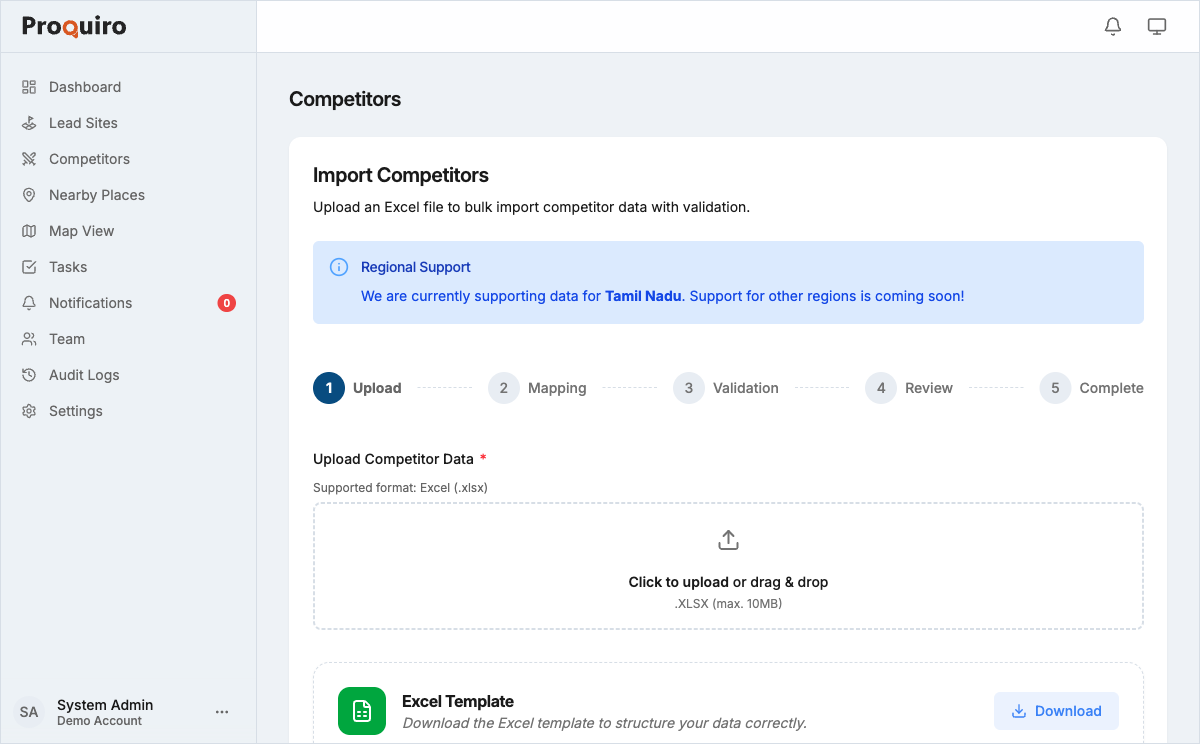
If you have an existing spreadsheet of competing projects, you can import them in bulk instead of adding each one manually. This is especially useful when you’re onboarding a new market or consolidating research from multiple team members.
Before you start
Your CSV must use UTF-8 encoding. Maximum 500 rows per import. Each row becomes one competitor record.
Tip: If you’re using Excel, go to File → Save As and explicitly choose “CSV UTF-8” — the default CSV option in some Excel versions uses a different encoding that can corrupt special characters.
Import steps
- Go to Competitors in the sidebar.
- Click Import → Download Template.
- Open the downloaded
competitors-template.csvin Excel or Google Sheets. - Fill in your data. Column headers must not be changed — only add rows below the header row.
- Save as CSV (UTF-8).
- Back in Proquiro, click Import → Upload CSV and select your file.
- On the column mapping screen, confirm that each CSV column is matched to the correct Proquiro field. Adjust any mismatches using the dropdowns.
- Click Validate. Proquiro checks for formatting errors before importing.
- Review the validation summary (see below), then click Import to finish.
Column reference
| CSV column | Proquiro field | Required |
|---|---|---|
name | Name | Yes |
developer | Developer | No |
type | Type (Apartment / Villa / Layout) | No |
stage | Stage | No |
price_per_sqft | Price/sqft | No |
village | Village | No |
The Type column must contain exactly Apartment, Villa, or Layout (case-insensitive). Any other value will fail validation for that row.
Tip: Start with the downloaded template rather than building your own CSV from scratch — it guarantees the column headers match exactly what Proquiro expects.
Validation and errors
After clicking Validate, you will see:
- Valid rows — ready to import
- Rows with errors — listed with the row number and a clear reason (e.g., “Invalid type value”, “Name is required”)
You can download an error report as a CSV, fix the rows in your spreadsheet, and re-upload. Rows with errors are skipped; valid rows will still import if you choose to proceed — so you don’t have to fix everything in one pass.
Checking import results
Once the import completes, a summary shows how many records were created. The new competitors appear immediately on the Competitors page. Use the search or filters to verify the data looks correct.
If you need to undo an import, you must delete records individually or contact support for a bulk delete. Because of this, it’s worth doing a quick spot-check of your CSV before importing.