The Competitors page gives you a consolidated view of every competing project in your market. Knowing what’s happening around your lead sites — who’s building what, at what price — helps you negotiate smarter and move faster.
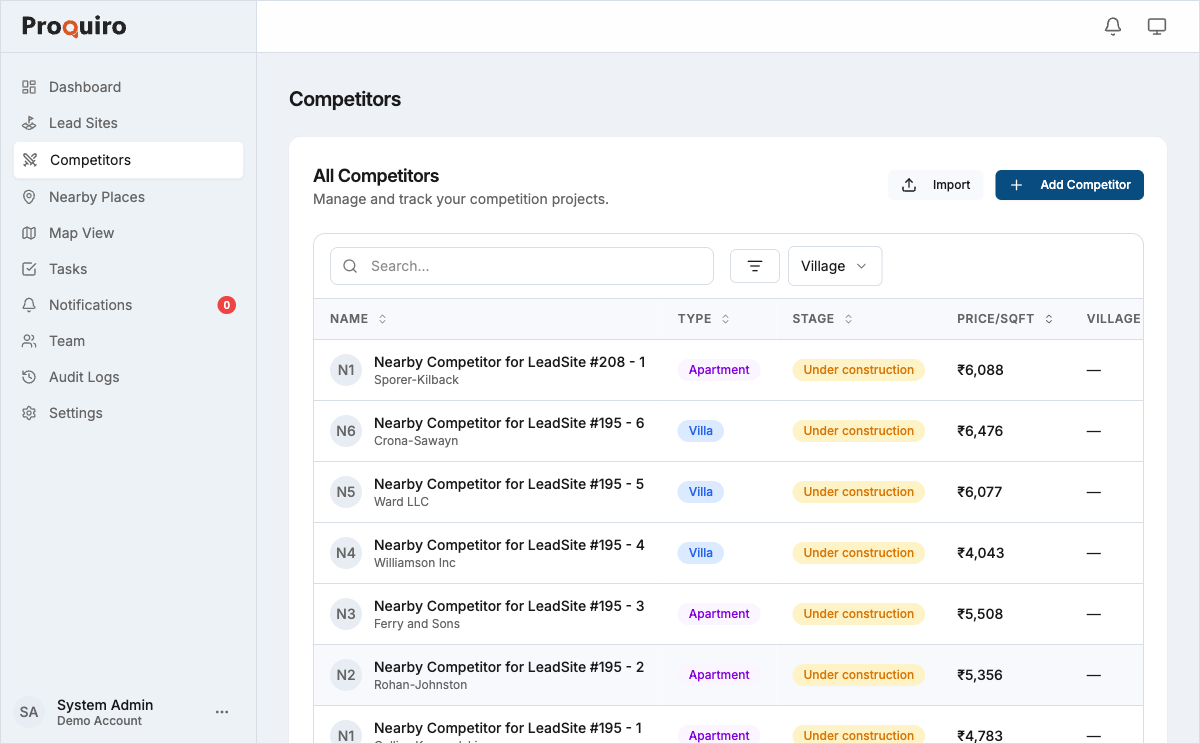
Add a competitor
- Go to Competitors in the sidebar.
- Click Add Competitor.
- Fill in the fields (see below) and click Save.
Tip: Heard about a new project from a broker or spotted a hoarding on-site? Add it right away, even with just a name — you can fill in pricing and stage details later.
Tracked fields
| Field | Description |
|---|---|
| Name | Project or scheme name |
| Developer | Company or individual developing the project |
| Type | Apartment, Villa, or Layout |
| Stage | Pre-launch, Under Construction, Ready to Move, etc. |
| Price/sqft | Quoted or known price per square foot |
| Village | Village or locality where the land/project sits |
All fields except Name are optional, but the more you fill in, the more useful the filters become. Price and stage data in particular help your team benchmark deals during negotiations.
Search and filter
Use the search bar at the top of the Competitors page to find a competitor by name or developer.
Use the filter panel to narrow by:
- Type — show only Apartments, Villas, or Layouts
- Stage — filter by development stage to see who’s actively building
- Village — show competitors in a specific locality
- Price/sqft range — set a minimum and maximum to compare pricing tiers
Filters stack. Clear individual filters by clicking the × next to each, or click Reset Filters to clear all.
Competitor detail page
Click any competitor row to open its detail view. Here you can see all tracked fields, contact information, and price history at a glance.
Contacts
Add contact people associated with a competitor project — brokers, sales managers, or developers. Click Add Contact on the competitor detail page to store a name and phone number. Having these on file saves time when you need to do a quick price check or verify project status.
Price history
Track how a competitor’s pricing changes over time. Price data is collected automatically from market sources and updated weekly. You can also click Add Price Entry to record a price/sqft data point manually — useful for informal quotes from brokers or field visits.
When two or more price data points exist, an interactive price trend chart appears on the competitor detail page, showing pricing movement over time at a glance.
Tip: Log a price entry every time you hear a new number — even informal quotes from brokers. Combined with automated data, these points paint a clear picture of where the market is heading.
Activity log
The Activity tab on the competitor detail page logs every change — edits, price updates, contact additions — with timestamps and the user who made the change.
Edit or delete a competitor
Click Edit on the competitor detail page to update any field. Use Delete to remove it permanently — this cannot be undone, so consider whether you’d rather keep the record for historical reference.