Proquiro can fetch official land records directly from government databases for any lead site. Three types of records are available:
- Chitta — shows the available recorded-holder name, Patta number, land classification, and extent for revenue purposes. It does not establish legal title by itself.
- A-Register — shows the detailed land classification, soil type, sub-division history, and government vs. private ownership status.
- View FMB online — search for the parcel-level source sketch and compare the recorded geometry or measurements shown with the deed, revenue record, and field survey.
All three are fetched automatically when you add a land record. You do not need to look them up manually.
Adding a land record
- Open the lead site detail page.
- Scroll to the Land Records section and click Add Land Record.
- A modal opens with a form. Fill in the fields described below, then click Fetch Record.
Proquiro queues a background fetch immediately after you save. The card shows a Fetching badge while the job runs — typically a few seconds for Chitta and A-Register, slightly longer for FMB.
Selecting the land type
The first field in the form is Type. Select the classification that matches the parcel:
| Type | When to use |
|---|---|
| Rural | Agricultural or panchayat land outside town limits |
| Urban | Land within a municipality or corporation boundary |
| Natham | Residential village settlement land (habitation area) |
The form fields that appear next depend on which type you choose.
Entering survey details
Rural
Two dropdowns appear: Survey No. and Subdiv. The survey numbers are loaded from the village record. Select the survey number first — subdivision options populate automatically based on your selection. If there is only one subdivision, it is selected for you.
Urban
Four cascading dropdowns appear: Ward → Block → Survey No. → Subdiv. Each dropdown loads its options only after the previous one is filled. Select ward first, then block, then survey number, then subdivision. As with rural, a single subdivision is auto-selected.
Natham
Two free-text fields appear for Survey No. (e.g. 106) and Subdiv. (e.g. 4B). Type the values directly — there are no dropdowns for Natham parcels.
Village (multi-village sites)
If the lead site’s taluk has more than one village, a Village dropdown appears at the top of the form. This lets you attach the land record to the correct revenue village when a site spans multiple villages or when you are adding a secondary survey from a neighbouring village.
Viewing fetched data
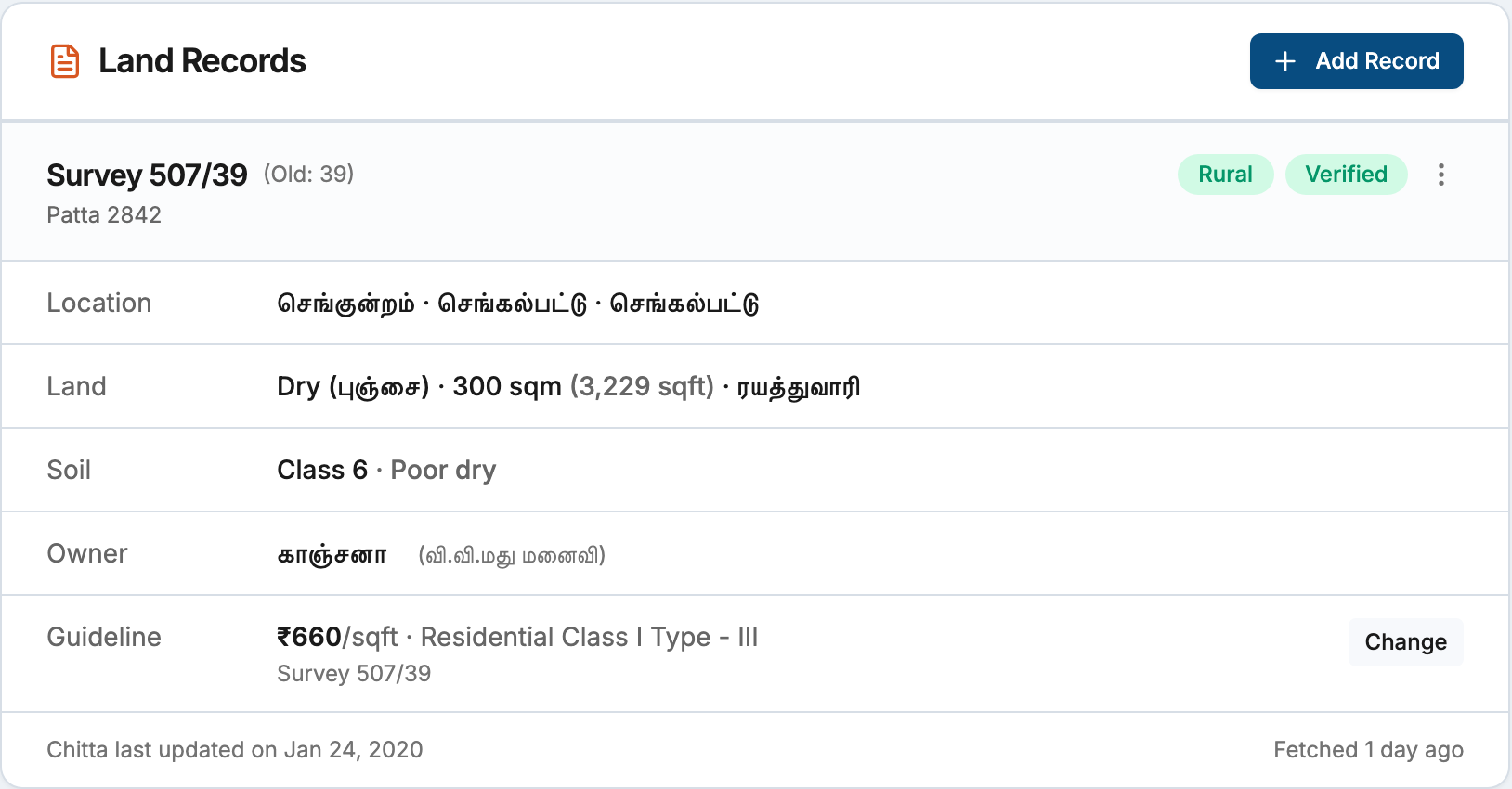
Once the fetch completes, the card shows a Verified badge and displays:
- Location — village, taluk, and district (in Tamil where available)
- Land — land type (English and Tamil), extent in sqm and sqft, and government/private classification
- Soil — soil class and label (from A-Register)
- Owners — owner names with relationship details for co-owners (from Chitta)
- Guideline — guideline value per unit once set (see Setting guideline values)
The footer of the card shows when the Chitta was last updated in government records and when Proquiro last fetched the data.
FMB sketch
If an FMB sketch is available for the survey, a View FMB Sketch option appears in the record’s action menu (the three-dot icon in the card header). Clicking it opens the sketch in a new tab as a PDF or image depending on the source.
Restriction alerts
Proquiro automatically flags high-risk ownership conditions:
- Poramboke — the parcel is government reserved land and cannot be purchased. A red alert is shown.
- Temple / Waqf land — the parcel is subject to religious endowment restrictions. A red alert is shown with the specific restriction reason.
- Government land — the parcel is government-owned but not Poramboke. An orange alert prompts you to verify ownership and transferability.
Sibling surveys
When a patta covers multiple survey numbers, Proquiro automatically creates land records for the additional surveys using the same ownership data already fetched. These sibling records appear on the lead site immediately, each with their own FMB fetch queued in the background. You do not need to add them manually.
Editing a land record
To correct a survey number or subdivision after creation, open the action menu on the card and select Edit Survey No.. A modal opens with the same form fields. Click Save & Re-fetch to apply the change.
Note: Editing the survey number clears all previously fetched data. Proquiro re-fetches Chitta, A-Register, and FMB automatically after you save.
Refreshing stale data
Land records show an Outdated badge when the fetched data is older than 90 days. Click Refresh in the card header to queue a fresh fetch. You can also retry a failed fetch using the Retry link that appears next to the Failed badge.
If a fetch stalls for more than five minutes, the badge changes to Stalled and a Retry link appears. This is rare and usually caused by a temporary issue with the data source.
Deleting a land record
Open the action menu on the card and select Delete. Confirm the prompt. Deletion is permanent and removes the record from the lead site’s survey list.