An encumbrance certificate (EC) is an official record of all registered transactions — sales, mortgages, leases — on a property over a specified period, used to verify that a plot is free of legal liabilities. Every EC is anchored to a specific Sub-Registrar Office based on the village the property sits in.
Requirements
The lead site must have a village assigned. Proquiro uses the village to determine which registration office covers the land and to pre-fill the form.
Request an encumbrance certificate
- Open a lead site from the Lead Sites list.
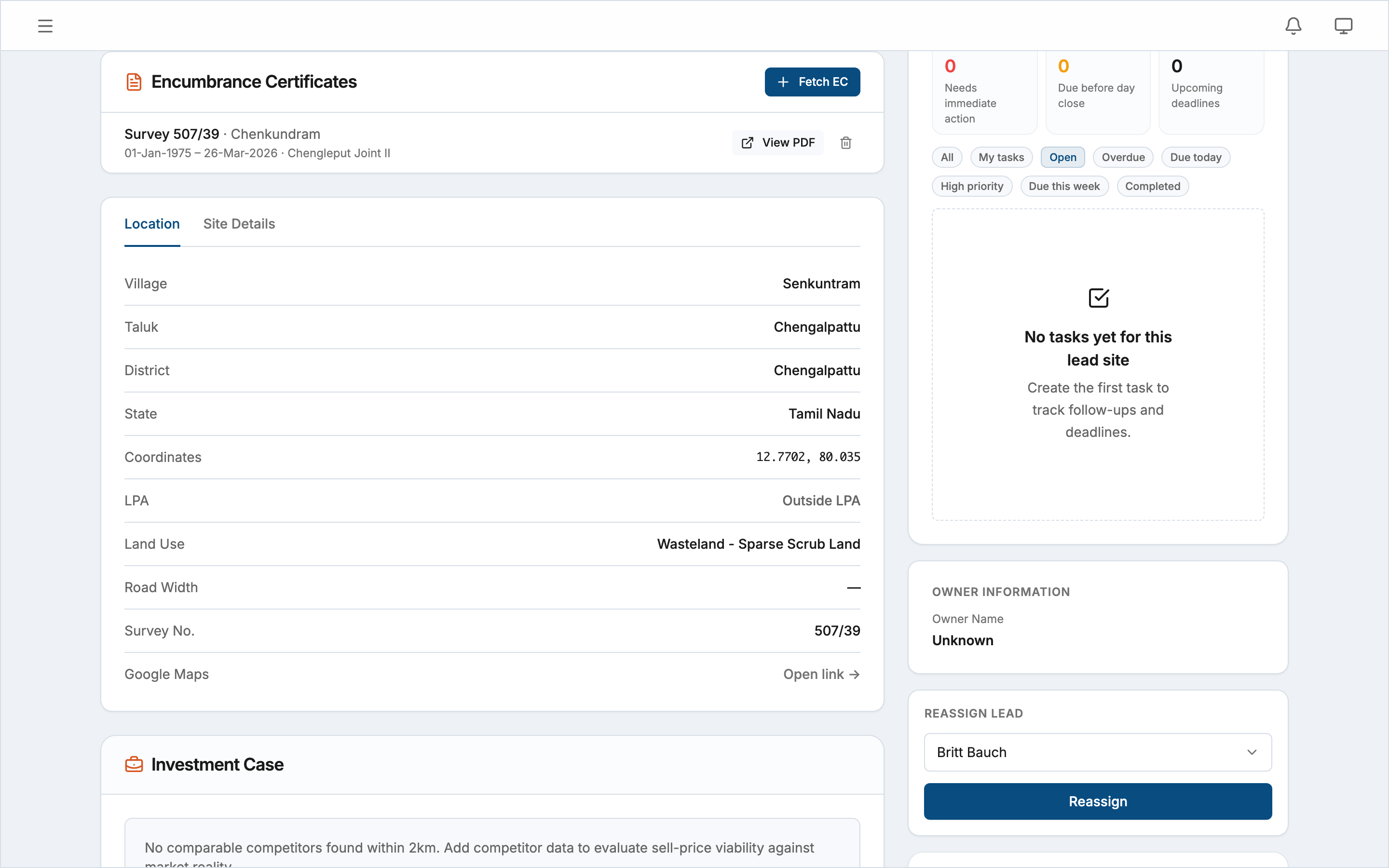
- Scroll to the Encumbrance Certificates section.
- Click Fetch EC.
- Fill in the form:
- Registration Village — Select the village and SRO (Sub-Registrar Office) that covers your plot. If the lead site’s village is pre-mapped, this field is pre-selected for you. If multiple SROs appear in the list, choose the one whose date range matches the period you need.
- Survey / Subdivision — Enter one or more survey numbers in comma-separated format (e.g.
101/2B, 102/1A, 559). Usesurvey/subdivisionnotation when applicable; omit the subdivision for a full survey number. Any land records already attached to the site are pre-filled here. - From / To — Set the date range for the EC. The default start date is the earliest date available for the selected registration village; the end date defaults to yesterday.
- Click Fetch EC.
The modal closes and the new entry appears in the list immediately with a Fetching… status while Proquiro retrieves the certificate in the background.
Multi-SRO date ranges
If the date range you enter spans the active period of more than one registration village (for example, when a village was re-registered under a new SRO), Proquiro automatically creates additional EC requests to cover each gap. Each request appears as a separate entry in the list with its own date range and SRO label. You do not need to split the request manually.
Viewing results
Once a fetch completes successfully, the entry shows a View PDF button. Click it to open the certificate PDF in a new browser tab. The PDF filename includes the survey number for easy reference.
Each entry in the list shows:
- Survey number and registration village name
- Date range covered by that EC
- SRO name (Sub-Registrar Office)
Downloading the PDF
With the PDF open in your browser, use your browser’s built-in save or print function to download a local copy. There is no separate download button — the PDF opens inline so you can review it before saving.
Error handling
If a fetch fails, the entry shows a red error message explaining what went wrong. You have two options:
- Edit and re-fetch (pencil icon) — Opens the form pre-filled with the existing parameters so you can correct the registration village, survey number, or date range, then resubmit.
- Retry (refresh icon) — Re-runs the fetch with the same parameters unchanged. Use this for transient failures.
Common reasons for failure include an unrecognised survey number, a date range outside the available records for that village, or a temporary service interruption. Correcting the village or narrowing the date range resolves most cases.
Deleting an EC
Click the trash icon next to any entry that is not currently fetching to remove it. You will be asked to confirm. Only admins and managers can delete encumbrance certificates.