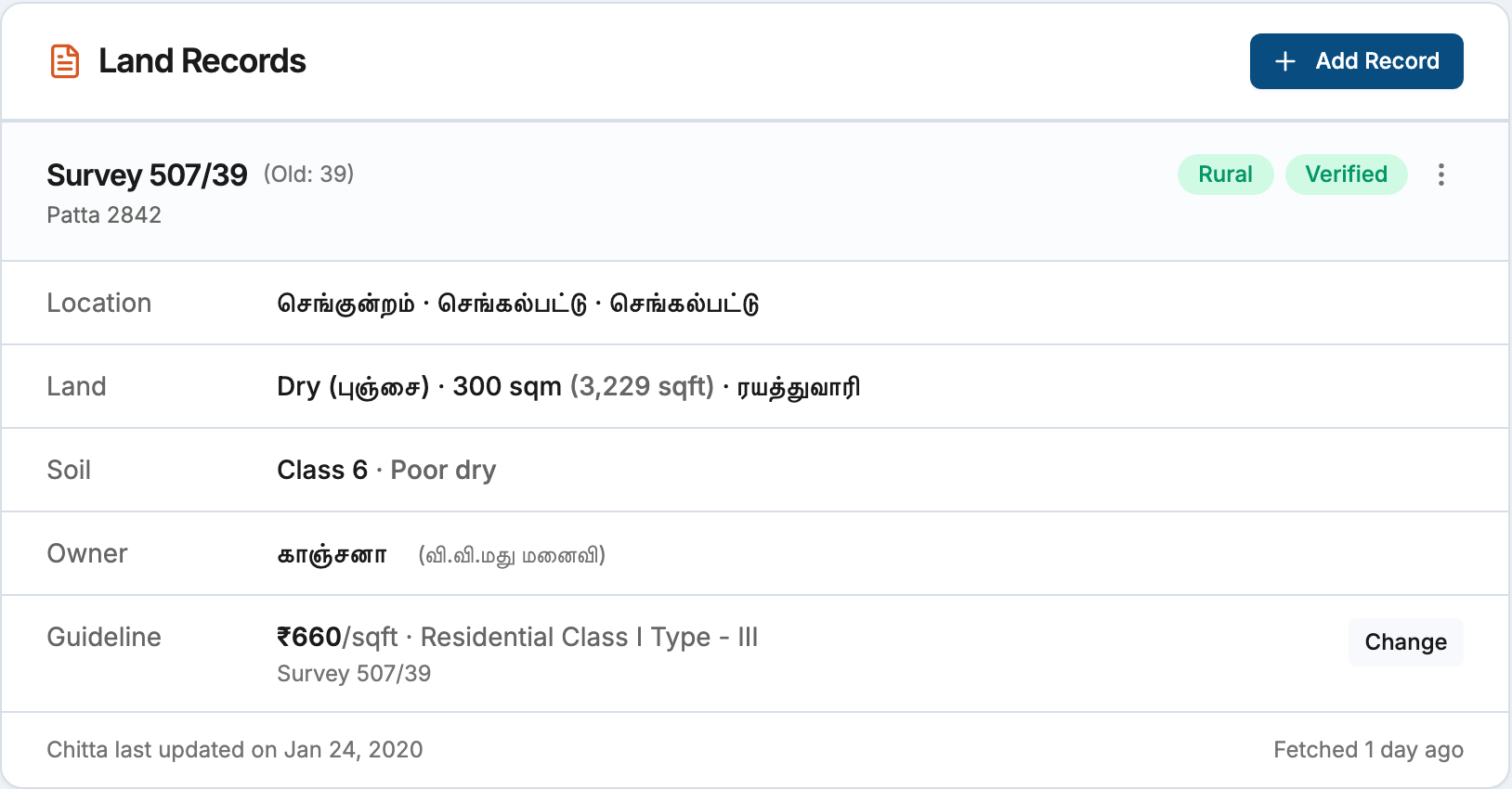
A guideline value is the minimum per-unit rate set by the government for a land parcel, used as the basis for stamp duty and registration fee calculations. Proquiro pulls this rate from the government registry so you don’t have to look it up manually — it appears in the Pricing tab of the site overview card and in the Lead Snapshot sidebar on the detail page.
Triggering a lookup
Open a lead site’s detail page and navigate to the Pricing tab in the site overview card. If no guideline value has been set yet, you’ll see a Set link next to the Guideline field. Click it to open the lookup panel inline on the page — no separate tab or page load required.
If a guideline value is already saved, you’ll see the current rate. You can click Change SRO / Village to update it.
How the SRO picker works
Proquiro maps each lead site to a Sub-Registrar Office (SRO) — the local government registration office that maintains guideline rates for that area. In most cases this mapping is automatic: if the lead site’s village is already known in the system, the correct SRO and registry village are pre-selected for you.
When the automatic mapping is unavailable or incorrect, a Select SRO & Village dialog opens. Use it as follows:
- Sub-Registrar Office — search by name from the full list of 595+ SROs statewide. Each entry shows the SRO name and its district or zone in parentheses.
- Village — once you select an SRO, the village list populates automatically with all villages under that office. Pick the village that matches your land parcel.
- Fetch by — choose whether to look up rates by Street name or Survey number. Street name is the default and covers most parcels; survey number is useful when the parcel is in a rural or newly subdivided area without named streets.
Click Fetch Guideline to run the lookup. Your SRO and village selection is saved to the lead site, so subsequent lookups skip this step.
Tip: If you’re unsure which SRO covers a parcel, search by the taluk or district name — the SRO name usually includes the taluk.
Zone and street hierarchy
When results come back by street name, you’ll see a searchable dropdown listing every street in that village. Each entry shows:
- Street name
- Rate per sqft (e.g. ₹4,500/sqft)
- Classification (e.g. Residential, Commercial, Agricultural)
Search the dropdown for the street your parcel fronts or is closest to. Select it and click the checkmark to save it as the guideline rate for this land record.
When results come back by survey number, the dropdown shows each matching survey subdivision with its rate and unit (per sqft, per sqm, per acre, or per hectare depending on how the government has recorded it). Select the subdivision that matches your land record and click Set.
Once saved, the guideline rate appears in:
- The Pricing tab — shown as a per-sqft figure alongside asking price
- The Lead Snapshot sidebar — guideline value per sqft for quick comparison
Auto-refresh of stale rates
Guideline rates are cached internally and refreshed automatically in the background if the data is more than 30 days old. When you open the guideline panel for a parcel with stale rates, Proquiro shows you the existing cached data immediately and triggers a background refresh. The rate updates on screen via a live push when the refresh completes — you don’t need to reload the page.
For survey number lookups where no cached data exists yet, the panel shows a loading spinner while the rate is being fetched. This typically resolves within a few seconds. If it takes longer than 30 seconds, the spinner is replaced with a message and a Select manually → link so you can choose a different lookup method or enter the rate by hand on the lead site form.
Troubleshooting
The dialog opens but no data appears after selecting SRO and village. The government registry may not have data for the selected village, or the village may be listed under a different SRO. Try switching to Survey number mode if the land record has a survey number. If that also returns nothing, use Select manually → and enter the guideline rate directly in the lead site edit form.
“Guideline data unavailable” error. This usually means the government registry is temporarily unreachable. Wait a minute and click the refresh icon to retry. If the error persists, enter the rate manually.
The loading spinner never goes away. The rate fetch timed out — the registry server did not respond within 30 seconds. Click Select manually → to either try a different SRO/village combination or enter the rate by hand.
Wrong village was auto-matched. Click Change SRO / Village to open the picker and select the correct SRO and village. Once you confirm your selection, it overrides the auto-mapped village for this lead site and also improves future auto-mapping for other lead sites in the same village.