Push notifications let you know about important updates even when you’re not looking at Proquiro — so you can respond to assignments and status changes without constantly checking the app.
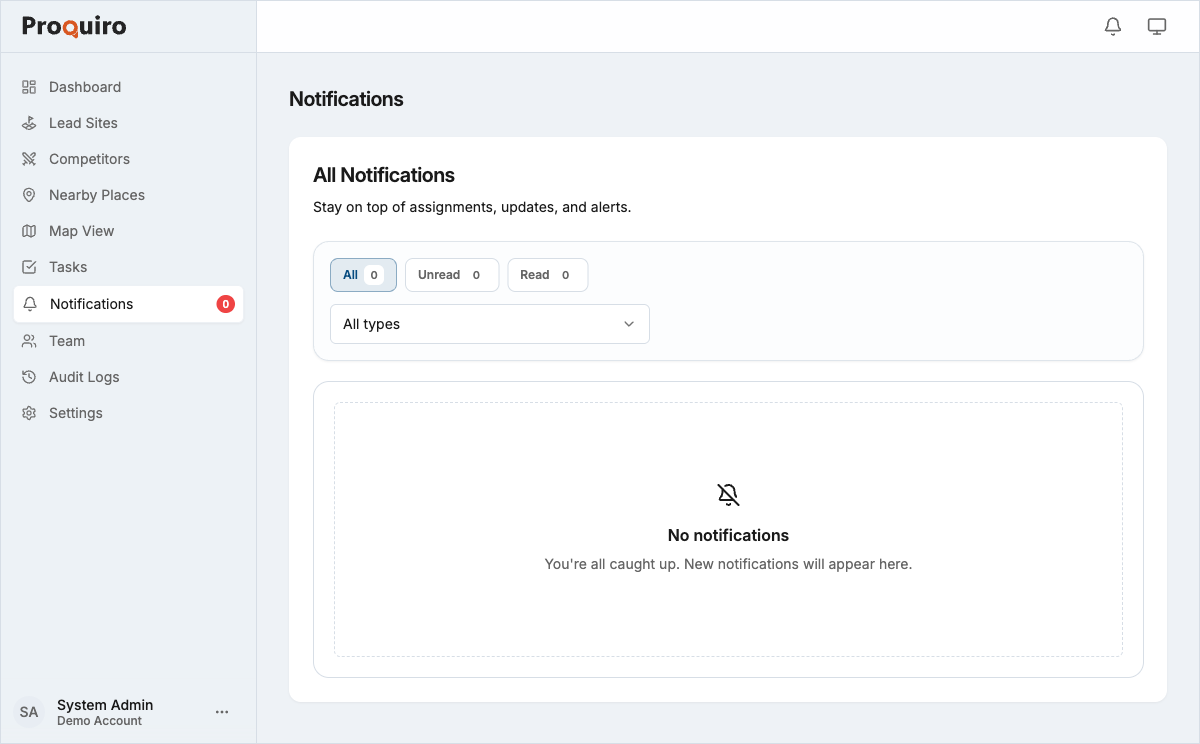
Enabling browser push notifications
- Open Settings from the left sidebar.
- Go to Notifications.
- Under Push Notifications, click Enable Push Notifications.
- Your browser will display a permission prompt — click Allow.
Once enabled, Proquiro can send notifications to your browser even when the app tab is not active. You’ll see them as native desktop alerts.
Tip: Make sure your operating system’s “Do Not Disturb” mode isn’t blocking browser notifications. This is a common reason people think push isn’t working.
Browser compatibility
Push notifications are supported in Chrome, Edge, and Firefox on desktop. Safari on macOS 13+ also supports push notifications but requires granting permission through the browser’s own notification settings in addition to the in-app prompt.
Push notifications are not supported on iOS Safari at this time.
What triggers push notifications
You’ll receive a push notification for the same events that appear in your in-app notification feed, subject to your notification preferences:
- A lead or task is assigned to you
- A lead you’re following changes status
- A task you own is due within 24 hours or is marked complete
- A document linked to your lead is ready for review
Managing your push subscription
Disabling push notifications
- Go to Settings > Notifications.
- Under Push Notifications, click Disable.
This removes the browser subscription. You’ll stop receiving push alerts, but your in-app notifications continue to work normally — you won’t miss anything, you just won’t get the desktop pop-ups.
Re-enabling after blocking
If you clicked Block in the browser permission prompt, Proquiro cannot request permission again automatically. You’ll need to fix it in your browser settings:
- In your browser’s address bar, click the lock or settings icon next to the Proquiro URL.
- Find Notifications in the site permissions panel.
- Change the setting from Block to Allow.
- Return to Settings > Notifications and click Enable Push Notifications.
Tip: If you’re unsure whether you blocked or simply dismissed the prompt, check your browser’s site settings for Proquiro. “Ask” means you can re-trigger the prompt from the app; “Block” means you need to change it manually.