Notifications keep you in the loop on lead assignments, status changes, and task updates so nothing slips past you. Here’s how to stay on top of them without getting overwhelmed.
Accessing notifications
Open notifications in one of two ways:
- Click the bell icon in the top navigation bar — a badge shows your unread count at a glance.
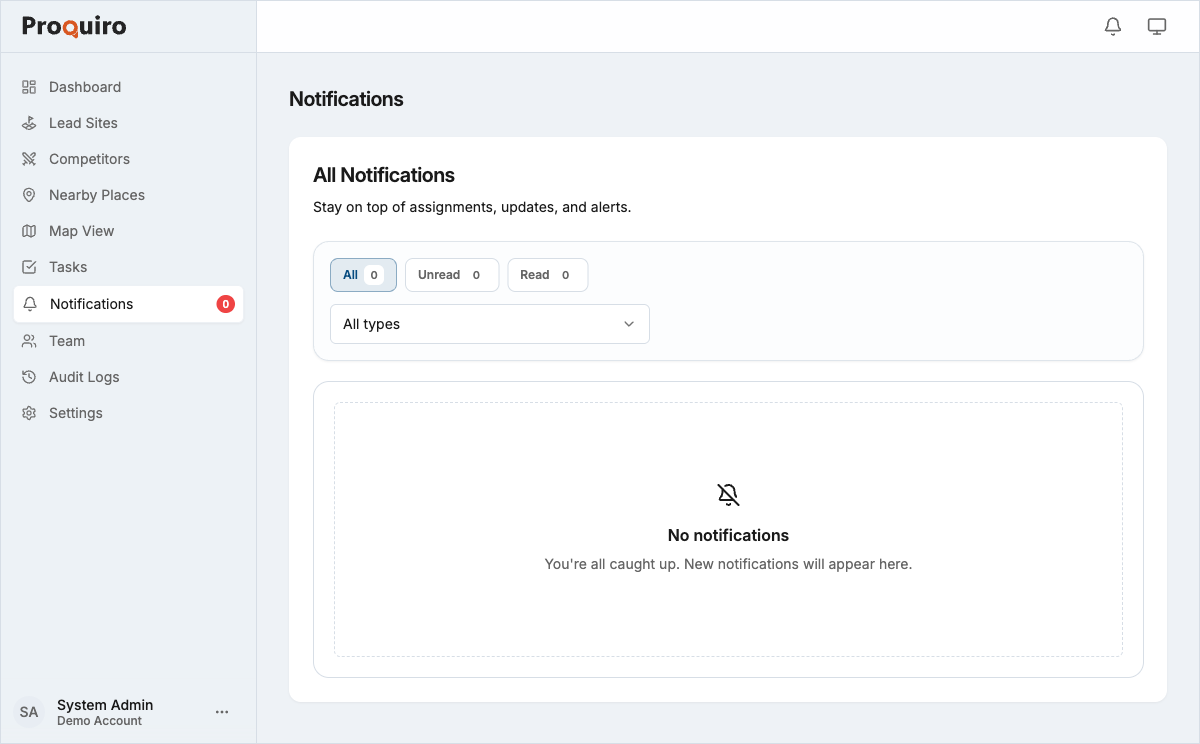
- Click Notifications in the left sidebar to open the full notifications page with filtering options.
Notification types
Proquiro generates notifications for the following events:
- Assignments — A lead or task has been assigned to you. You’ll know immediately when something lands on your plate.
- Status changes — A lead you’re following moves to a new status (e.g., Inquiry → Shortlist). Useful for staying aware of deal progress without checking manually.
- Task updates — A task you own or are mentioned in is updated, completed, or approaching its due date.
- Document actions — A document linked to your lead is generated, shared, or requires your review.
Filtering notifications
At the top of the notifications page, use the filter tabs to narrow your view:
- All — every notification, read and unread
- Unread — only notifications you haven’t opened yet
- Read — previously viewed notifications
To filter by notification type, use the Type dropdown and select one or more types (Assignments, Status Changes, Task Updates, Document Actions).
Tip: If you’re catching up after time away, filter to Unread and then use the Type dropdown to prioritise — start with Assignments, then Status Changes.
Marking notifications as read or unread
- Single notification — hover over a notification and click the Mark as read (or Mark as unread) option that appears on the right.
- Mark all as read — click Mark all as read in the top-right corner of the notifications page. This clears the unread badge immediately.
Notifications are never deleted — read notifications remain accessible under the Read filter tab, so you can always go back and find something.