Tasks are how your team tracks follow-up actions on land deals — site visits, legal checks, negotiation calls, and anything else that needs to happen on a specific timeline. If it’s not in a task, it’s easy to forget.
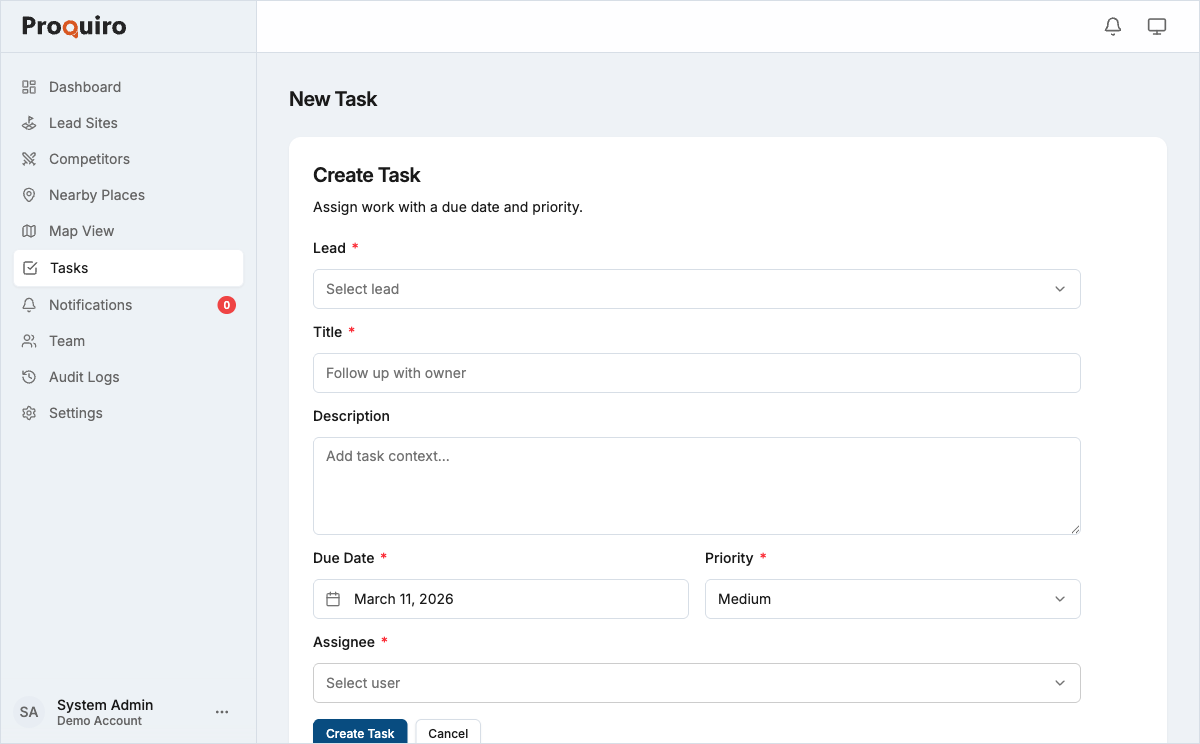
Create a task from the Tasks page
- Go to Tasks in the sidebar.
- Click New Task.
- Fill in the required fields (see below).
- Click Create Task.
This is the quickest way to create a standalone task. If you want it linked to a lead site, you can set that in the form or add it later.
Create a task from within a lead site
Creating a task from a lead site automatically links the task to that site — no extra step needed. This is the preferred approach when you’re already looking at a site and spot something that needs follow-up.
- Open a lead site from the Lead Sites list.
- Go to the Tasks tab.
- Click Add Task.
- Fill in the required fields.
- Click Create Task.
The task appears in both the lead site’s Tasks tab and the main Tasks page, so nothing falls between the cracks.
Required fields
| Field | Notes |
|---|---|
| Title | Short, action-oriented description (e.g., “Confirm EC with sub-registrar”) |
| Assignee | The team member responsible for completing the task |
| Priority | Low, Medium, or High |
| Due Date | Date by which the task must be completed |
Tip: Write titles as actions, not topics. “Call owner to negotiate price” is more useful than “Price discussion” when scanning a long task list.
Optional fields
- Description — add context, instructions, or links. This is especially helpful for handoffs — the assignee gets everything they need without chasing you down.
- Linked Lead Site — attach the task to a specific site. Required if you’re creating from the Tasks page and want the task associated with a site.
Linking a task to a lead site
If you created a task from the Tasks page without linking it, you can always add the connection later:
- Open the task.
- Click Edit.
- Use the Lead Site field to search and select the site.
- Click Save.
A task can only be linked to one lead site at a time. If a task spans multiple sites, create separate tasks for each — it keeps accountability clear.