Task comments give your team a shared log on each task — use them to post progress updates, record call outcomes, ask questions, or hand off context when reassigning. Everything stays attached to the task, so nothing gets buried in chat.
Task comments require a Pro plan or above.
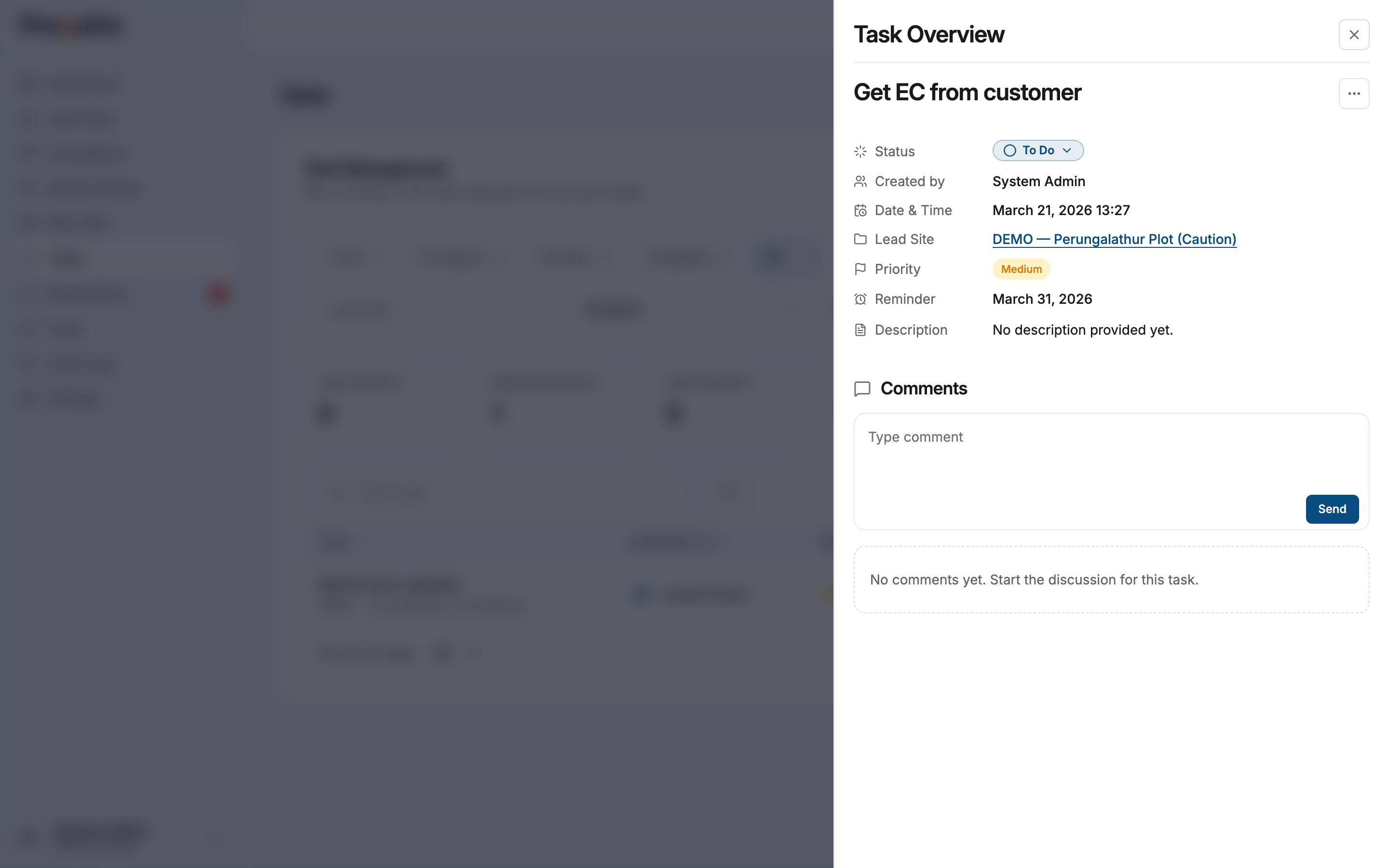
Where to find comments
Comments live at the bottom of the task detail panel. Open any task from the Tasks page or from the Tasks tab on a lead site — the Comments section is below the task details.
If no comments have been posted yet, you’ll see a placeholder message. Once comments exist, they appear in a threaded list ordered from oldest to newest, so you can follow the conversation in sequence.
Add a comment
- Open the task.
- Scroll to the Comments section.
- Type your message in the text field.
- Click Send.
Any team member with access to the task can post a comment — except Lead Assistants, who have read-only access to tasks and cannot post.
Edit or delete your own comments
If you need to correct something, click the ⋯ menu on your comment and choose Edit. Make your changes and click Save. Edited comments are marked with an edited label so the history stays transparent.
To remove a comment, choose Delete from the same menu. You’ll be asked to confirm before it’s removed. Admins can edit or delete any team member’s comment, not just their own.
Notifications
When you post a comment, Proquiro notifies the task’s assignee and the person who created the task — provided they’re not the one posting. You don’t need to @-mention anyone; the relevant people are notified automatically.
How to use comments well
Progress updates — when you complete a step but the task isn’t fully done, post a quick note: “Called owner, confirmed title is clear. Waiting on EC from sub-registrar.” The next person to check the task knows exactly where things stand.
Handoffs — if you’re handing a task to someone else, add a comment before reassigning. Include anything they need to know that isn’t in the description: who you spoke to, what was agreed, what’s still pending.
Blockers — comment to flag that a task is stuck and why. This gives managers visibility without requiring a separate message, and keeps the reason on record if the task comes up in a review later.