Once tasks are created, this is where you track them, update progress, and keep your team moving. A well-managed task list is the difference between deals that close on time and deals that stall.
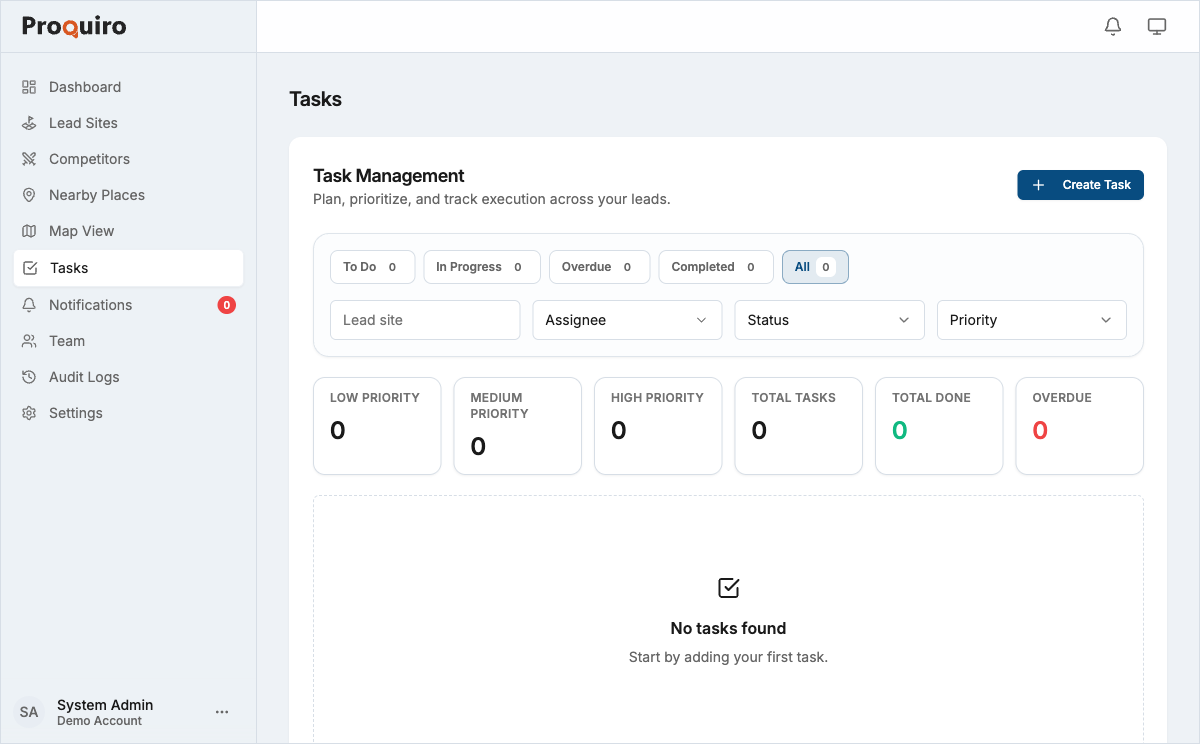
Task statuses
Every task moves through three statuses:
| Status | When to use |
|---|---|
| To Do | Task created but work has not started |
| In Progress | Actively being worked on |
| Completed | Done — no further action required |
Change a task’s status
- Open the task.
- Click the status badge at the top (e.g., To Do).
- Select the new status from the dropdown.
You can also change status directly from the Tasks list by clicking the status badge in the row — handy when you’re triaging multiple tasks at once.
Priority levels
| Priority | Use for |
|---|---|
| Low | Nice-to-have or non-time-sensitive actions |
| Medium | Standard follow-up actions |
| High | Urgent items — legal deadlines, owner meeting commitments, etc. |
Priority does not automatically reorder the list, but it works with filters and makes high-stakes items visually distinct. When in doubt, err toward Medium — overusing High dilutes its meaning.
My tasks vs team tasks
The Tasks page has two views:
- My Tasks — shows only tasks assigned to you. This is the default for Field Executives and Lead Assistants, keeping your personal workload front and center.
- Team Tasks — shows tasks across all team members. Available to Owners, Admins, and Managers for oversight and load balancing.
Switch between views using the tabs at the top of the Tasks page.
Tip: Managers should check Team Tasks regularly to spot bottlenecks before they slow down a deal.
Filtering the task list
Use the filter bar on the Tasks page to narrow your view:
- Status — show only To Do, In Progress, or Completed tasks
- Assignee — zero in on one team member’s workload
- Priority — surface only Low, Medium, or High priority tasks
- Due Date — filter by overdue, due today, due this week, or a custom date range
- Lead Site — show tasks linked to a specific site
Filters can be combined for precise views — for example, “High priority + Overdue + assigned to me” is a great way to start your morning. Click Reset to clear all active filters.
Adding comments to a task
Comments are your running log for a task — use them to record call outcomes, share updates, or flag blockers without changing the task’s status.
- Open the task.
- Scroll to the Comments section.
- Type your comment in the input field.
- Click Post.
Comments are visible to all team members who have access to the task. You can edit or delete your own comments after posting — Admins can also manage any comment. See Adding comments to tasks for details.
Overdue tasks
Tasks past their due date are flagged with an Overdue indicator in the task list and in the linked lead site’s Tasks tab. Proquiro won’t auto-complete or reassign them — the assignee needs to take action, whether that’s finishing the task or adjusting the due date.