Growing your team in Proquiro starts with an email invitation. Once accepted, new members can immediately access leads and tasks based on their assigned role — no setup calls or manual onboarding needed.
Invite a new team member
Only Owners and Admins can invite new team members.
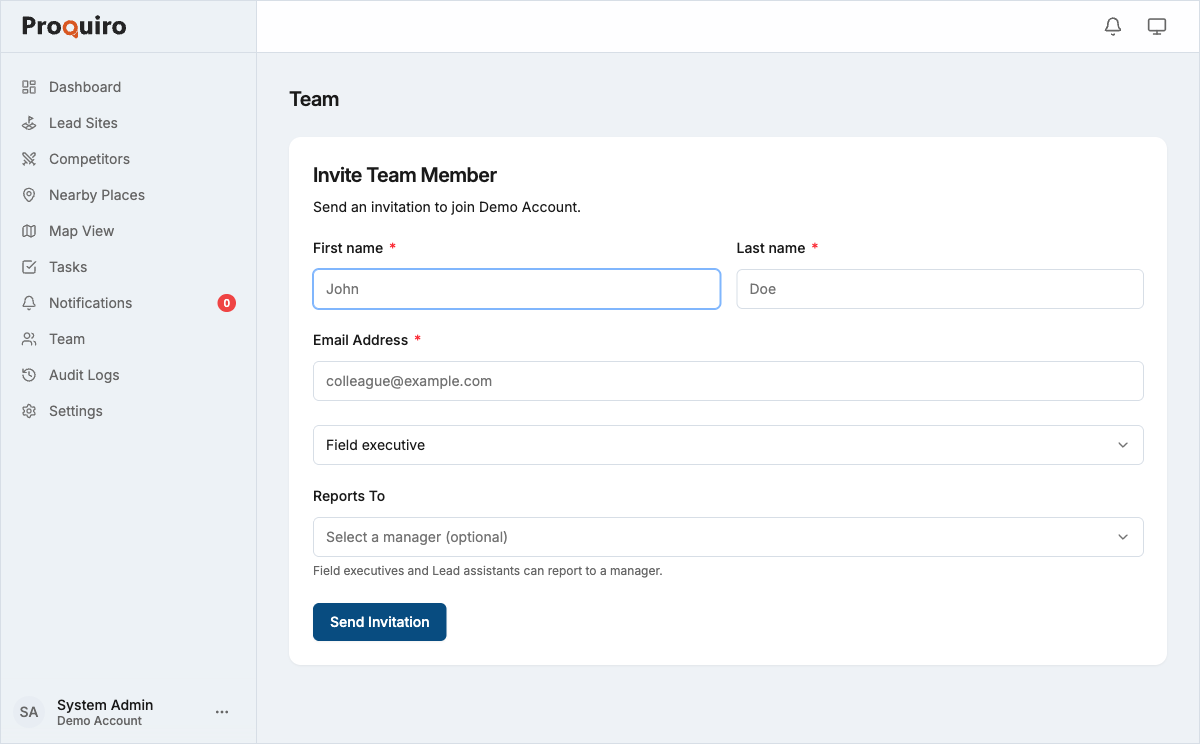
- Go to Team from the sidebar navigation
- Click “Invite Member”
- Enter the person’s email address
- Select a role (Manager, Field Executive, or Lead Assistant)
- Click Send Invitation
Tip: Think about the right role before sending the invite. Getting it right upfront saves you from adjusting permissions later. See Roles and permissions for a breakdown.
What the invited user sees
The invited person receives an email with a link to accept the invitation. If they already have a Proquiro account, they’ll be added to your organisation immediately. If not, they’ll be guided through account creation first — it only takes a minute.
Invitation limits
- Each invitation link is valid for 7 days — after that, you’ll need to resend
- You can resend an invitation if it hasn’t been accepted yet (handy when emails land in spam)
- The number of team members you can invite depends on your plan’s seat limit
After accepting
Once the invitation is accepted, the new team member appears in your Team list. They can immediately access the features allowed by their assigned role — no waiting for an admin to flip a switch.
Changing roles
To change a team member’s role after they’ve joined, go to Team, click on their name, and select a new role from the dropdown. Only Owners and Admins can change roles.
Tip: If someone’s responsibilities shift (say, a Field Executive becomes a Manager), update their role promptly so they have the access they need.