When someone leaves your organisation or no longer needs access, deactivating them is the right move. It cuts off their access immediately, frees up a seat, and preserves all their historical data so nothing is lost.
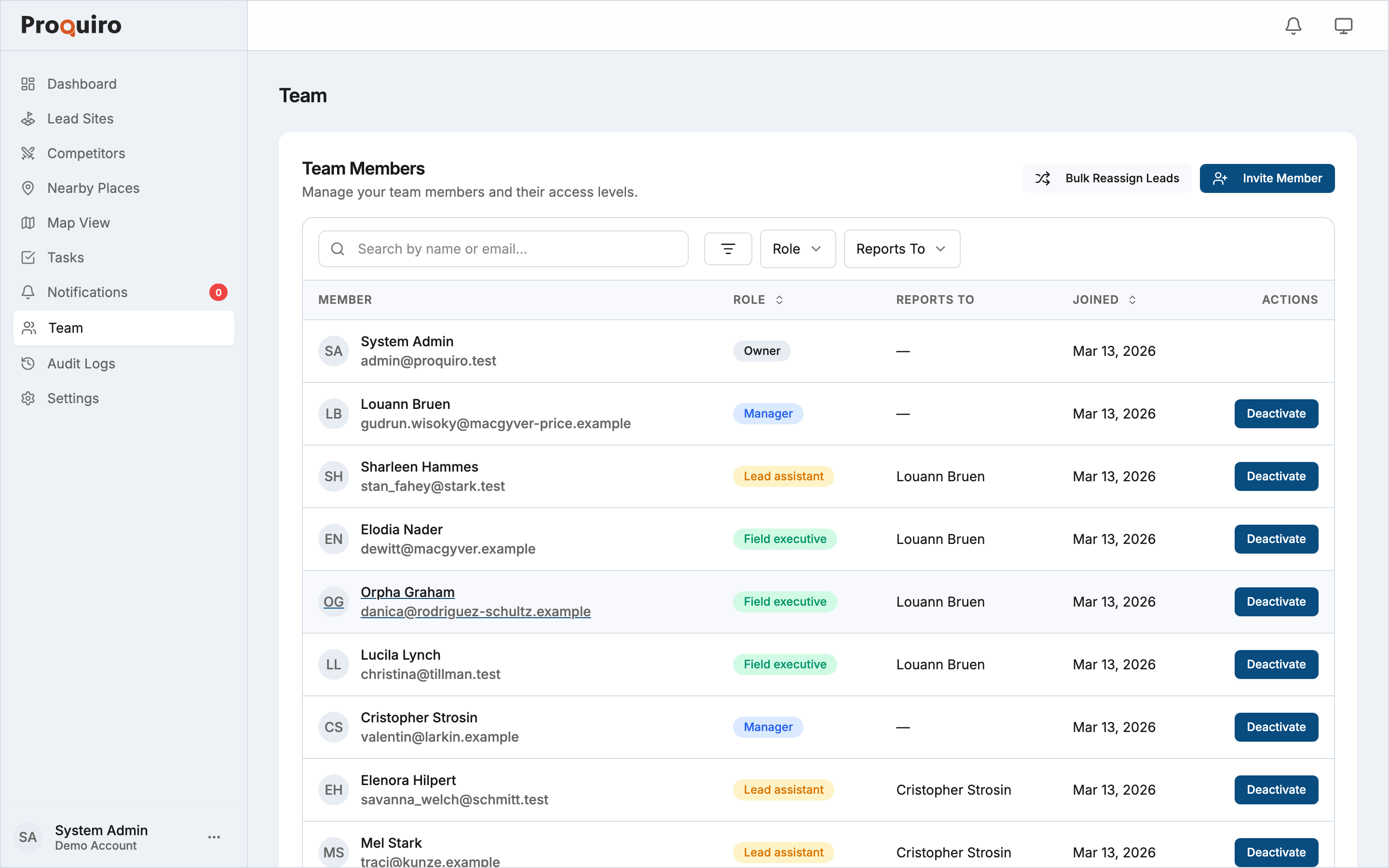
When to deactivate
- A team member has left and should no longer have access
- Someone is on an extended leave and you need to free up a seat for a replacement
- You’re managing seat limits and want to suspend access temporarily without permanently deleting the account
Who can deactivate
Only Owners and Admins can deactivate or reactivate team members.
Two restrictions apply: you cannot deactivate yourself, and you cannot deactivate the account owner (transfer ownership first if needed). You also cannot deactivate the only remaining Admin — there must always be at least one admin on the account.
How to deactivate
- Go to Team from the sidebar navigation
- Find the team member in the active members list
- Click “Deactivate” next to their name
- Confirm the action in the prompt
The member is logged out immediately. Their account is moved to the Deactivated Users section at the bottom of the Team page.
What happens to their open leads
If the member has open leads assigned to them, you are prompted to handle reassignment before deactivation goes through:
- If other assignable members exist — you’re redirected to the Bulk Reassign page to move their open leads to someone else before proceeding. See Reassigning leads in bulk for how that works.
- If no other assignable members exist — their open leads are automatically reassigned to you, and you receive a confirmation showing how many leads were transferred.
Leads in terminal statuses (won, lost, or otherwise closed) are not affected either way.
What happens to their other data
- Tasks remain as-is — they stay assigned to the deactivated member and are visible in the task list
- Activity history is fully preserved — audit logs, site visit reports, notes, and all actions taken by that member remain intact
- Historical lead data is unaffected — nothing is deleted or anonymised
The deactivated state
A deactivated member:
- Cannot log in to Proquiro
- Does not count toward your plan’s seat limit
- Appears in the Deactivated Users section on the Team page, with the date they were deactivated
- Is excluded from new lead assignments and task assignments
How to reactivate
If someone rejoins or you need to restore their access:
- Go to Team from the sidebar navigation
- Scroll to the Deactivated Users section
- Click “Reactivate” next to their name
Reactivation restores their previous role and access level immediately. If your account is at its seat limit, reactivation will be blocked — you’ll need to either upgrade your plan or deactivate another active member first to free up a seat.