Proquiro uses five roles to control what each team member can see and do. Getting roles right matters — they protect sensitive data while making sure everyone has the access they need to do their job.
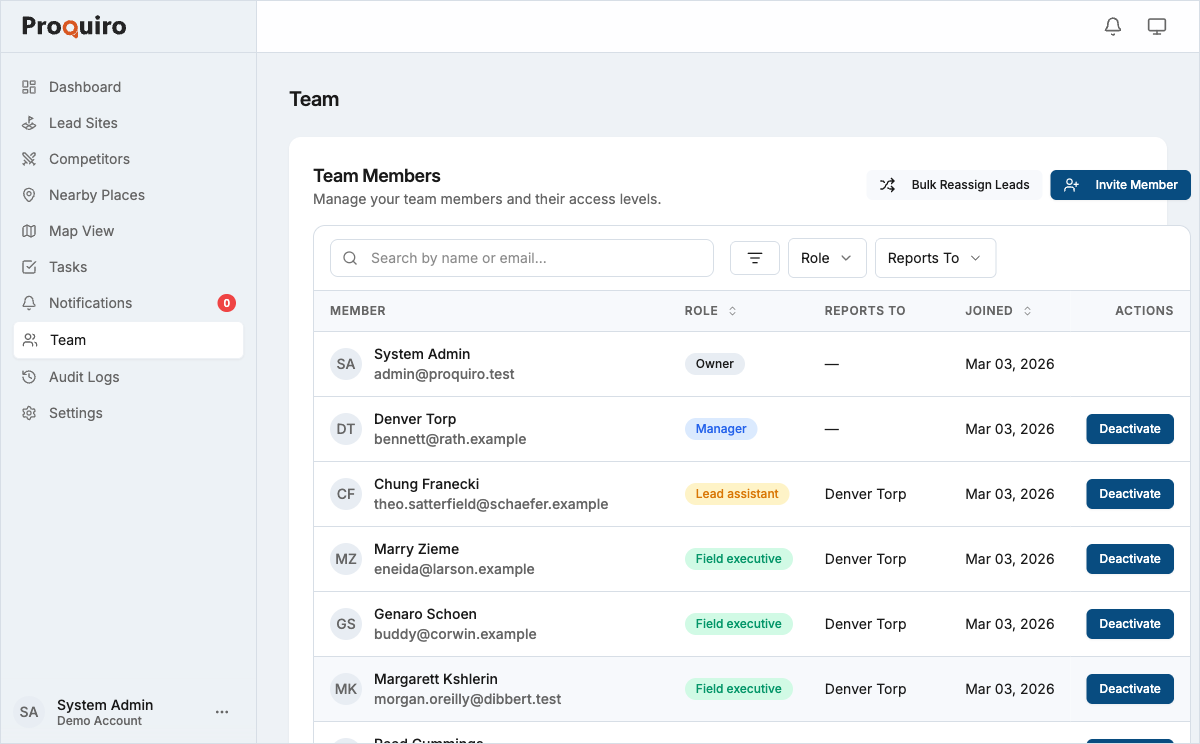
Roles
Owner
Full access to everything, including billing, team management, and all data. Each organisation has exactly one Owner. Think of this as the account holder.
Admin
Same access as Owner, except they cannot transfer ownership or delete the organisation. Admins can manage billing, invite/remove users, and see all leads. This is the right role for a trusted operations lead who handles day-to-day admin.
Manager
Can see and manage all leads within the organisation. Managers assign leads to Field Executives and Lead Assistants, create tasks, and upload documents. Cannot access billing or team settings — they’re focused on deals, not admin.
Field Executive
Can see leads assigned to them and leads they created. Field Executives update lead statuses, add notes, upload documents, and manage tasks on their leads. Cannot see other team members’ leads, which keeps things focused.
Lead Assistant
The most restricted role. Lead Assistants can view leads assigned to their manager and add notes or comments, but cannot create leads, change statuses, or upload documents independently. Ideal for support staff who need visibility without edit access.
Permissions summary
| Action | Owner | Admin | Manager | Field Exec | Lead Asst |
|---|---|---|---|---|---|
| View all leads | Yes | Yes | Yes | No | No |
| Create leads | Yes | Yes | Yes | Yes | No |
| Change lead status | Yes | Yes | Yes | Own only | No |
| Manage team | Yes | Yes | No | No | No |
| Access billing | Yes | Yes | No | No | No |
| Upload documents | Yes | Yes | Yes | Yes | No |
Tip: When in doubt, start with a more restricted role. You can always upgrade someone’s permissions later, but it’s harder to walk back access once granted.
Editing a team member
- Go to Team in the sidebar.
- Click the member you want to update.
- Click Edit.
- Change their role or other details.
- Click Save.
Only Owners and Admins can edit team member roles.
Deactivating and reactivating members
To remove someone’s access without deleting their history, click Deactivate on their profile. Deactivated members cannot sign in, but their past activity (leads, tasks, comments) is fully preserved. Click Reactivate to restore access later — everything picks up right where they left off.
Tip: Always deactivate rather than deleting. It keeps your audit trail intact and makes re-onboarding painless if the person returns.
Bulk reassign
When a team member leaves or changes role, use Bulk Reassign to transfer all their leads and tasks to another member at once. This prevents anything from falling through the cracks during transitions.
- Go to Team in the sidebar.
- Click Bulk Reassign.
- Select the member whose items you want to transfer.
- Choose the new assignee.
- Confirm the reassignment.