Proquiro is a Progressive Web App (PWA). That means you install it directly from your browser — no App Store or Play Store required — and it runs full-screen on your phone just like a native app.
Install on Android (Chrome)
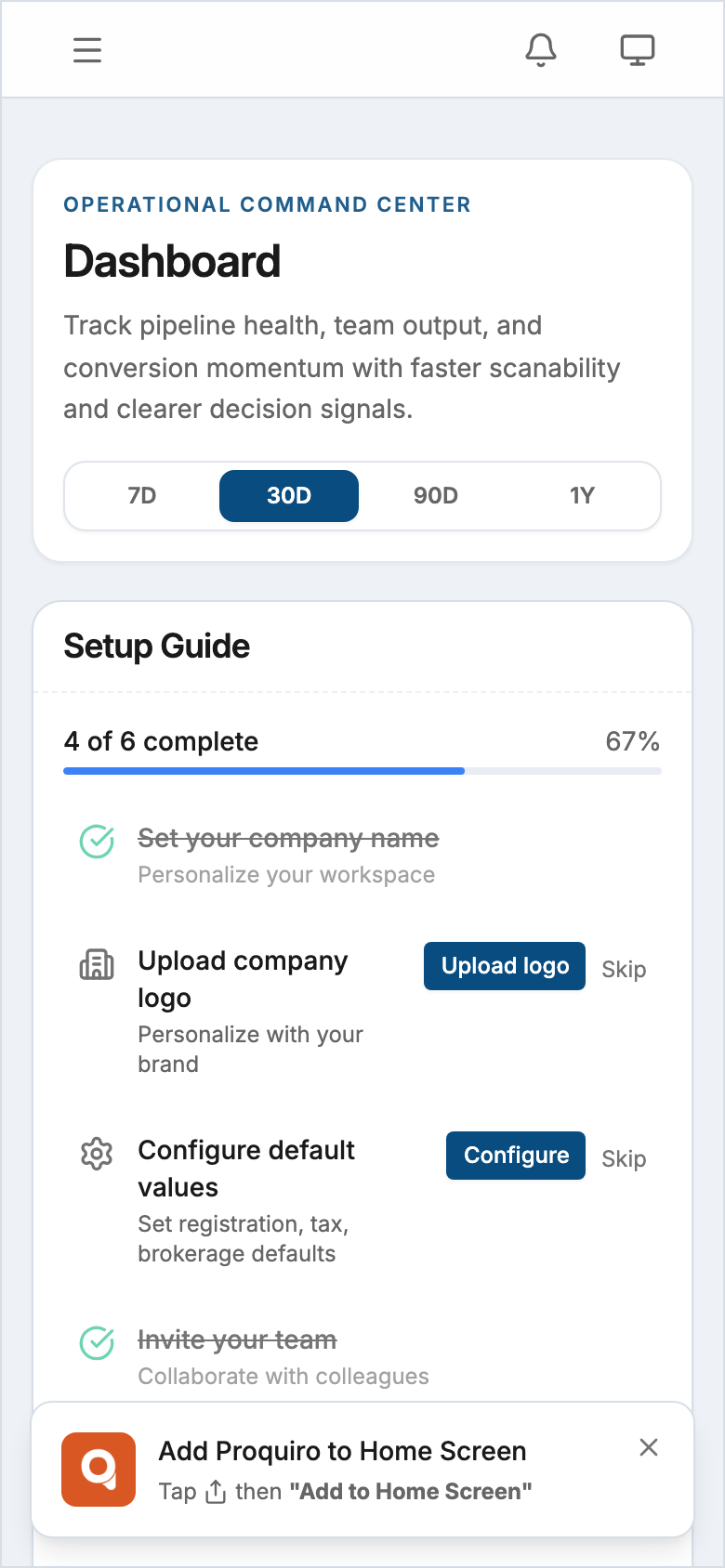
Chrome will often show an install banner automatically after you’ve used Proquiro for a bit. Tap Add to Home Screen on the banner and confirm.
If the banner doesn’t appear, install it manually:
- Open Proquiro in Chrome.
- Tap the three-dot menu (⋮) in the top-right corner.
- Tap Add to Home screen.
- Give it a name (or leave the default) and tap Add.
The Proquiro icon will appear on your home screen. Tap it to launch the app in full-screen mode, without the browser address bar.
Install on iPhone or iPad (Safari)
iOS requires Safari — the install option is not available in Chrome or other iOS browsers.
- Open Proquiro in Safari.
- Tap the Share button (the square with an arrow pointing up) at the bottom of the screen.
- Scroll down and tap Add to Home Screen.
- Tap Add in the top-right corner.
The Proquiro icon will appear on your home screen alongside your other apps.
The full-screen experience
Once installed, Proquiro opens without browser chrome — no address bar, no navigation buttons. It behaves like a native app: you can switch to it from your app switcher, and it gets its own entry in your recent apps list.
Enabling push notifications
After installing, Proquiro will ask for permission to send you push notifications. These are used for task reminders, lead updates, and team activity alerts. Tap Allow when prompted.
If you missed the prompt or declined:
- Android: Go to your phone’s Settings → Apps → Chrome → Notifications, or open Proquiro in Chrome, tap the lock icon in the address bar, and enable notifications from there.
- iOS: Go to Settings → Proquiro (scroll to find it under your apps) → Notifications, and turn on Allow Notifications.
Offline use
Proquiro requires an internet connection to load and sync your data. You won’t be able to use the app fully offline. If you lose connectivity mid-session, the app will reconnect and sync automatically once you’re back online.