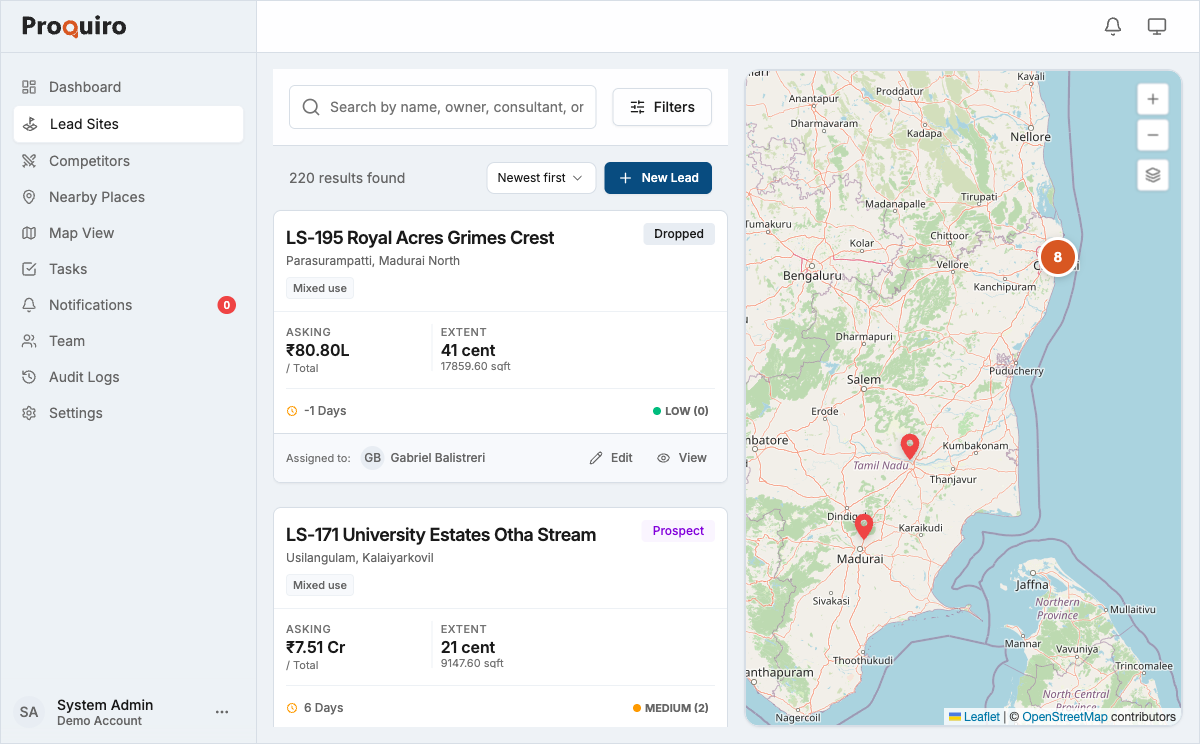
The Lead Sites page is your central directory of every land parcel your team is tracking. Open it from the Lead Sites link in the sidebar.
Searching
Use the search bar at the top of the list to find leads by site name, survey number, or village. Results update as you type, so you usually only need a few characters to find what you’re looking for.
Tip: Searching by survey number is the fastest way to pull up a specific parcel when you’re on a call with a landowner.
Filtering
Click the filter controls to narrow the list by:
- Status — show only leads in a specific stage (Inquiry, Shortlist, Analysis, Offer, Negotiation, Closed, Dropped, Rejected)
- Assigned to — see what’s on a particular team member’s plate
- Village / Locality — zero in on leads in a specific area
- Date range — filter by creation date or last updated date to spot stale leads
Filters stack — combine multiple filters to drill down to exactly what you need. Click Reset to clear all active filters.
Tip: Try combining “Status: Shortlist” with “Assigned to: me” for a quick view of leads that need your follow-up today.
Sorting
Use the sort dropdown (e.g. Newest first) to change the order of the list. You can sort by creation date, last updated, or other fields in ascending or descending order. Sorting by “Last updated” is handy for spotting leads that haven’t seen activity in a while.
Opening a lead
Click any lead card to open the lead site detail page, where you can view full details, financials, documents, tasks, and activity history.