If you have a spreadsheet of potential land parcels, you can import them in bulk instead of creating each lead site manually. This is especially useful when onboarding a new market, consolidating research from field teams, or migrating data from another system.
Before you start
- Plan requirement — Bulk import is available on Team (up to 50 rows), Pro (up to 100 rows), and Enterprise plans. Solo users can create leads manually.
- File format — Only
.xlsx(Excel) files are supported. Maximum file size is 10 MB. - Google Maps URLs — Each row needs a Google Maps URL for the site location. Proquiro extracts the coordinates automatically and resolves the state, district, sub-district, and village — so you don’t need to enter location details manually.
Tip: If you don’t have Google Maps URLs yet, open Google Maps, navigate to each site, and copy the URL from the address bar. Both full URLs and shortened goo.gl / maps.app.goo.gl links work.
Import steps
- Go to Lead Sites from the sidebar.
- Click Import (desktop) or tap the three-dot menu and select Import Leads (mobile).
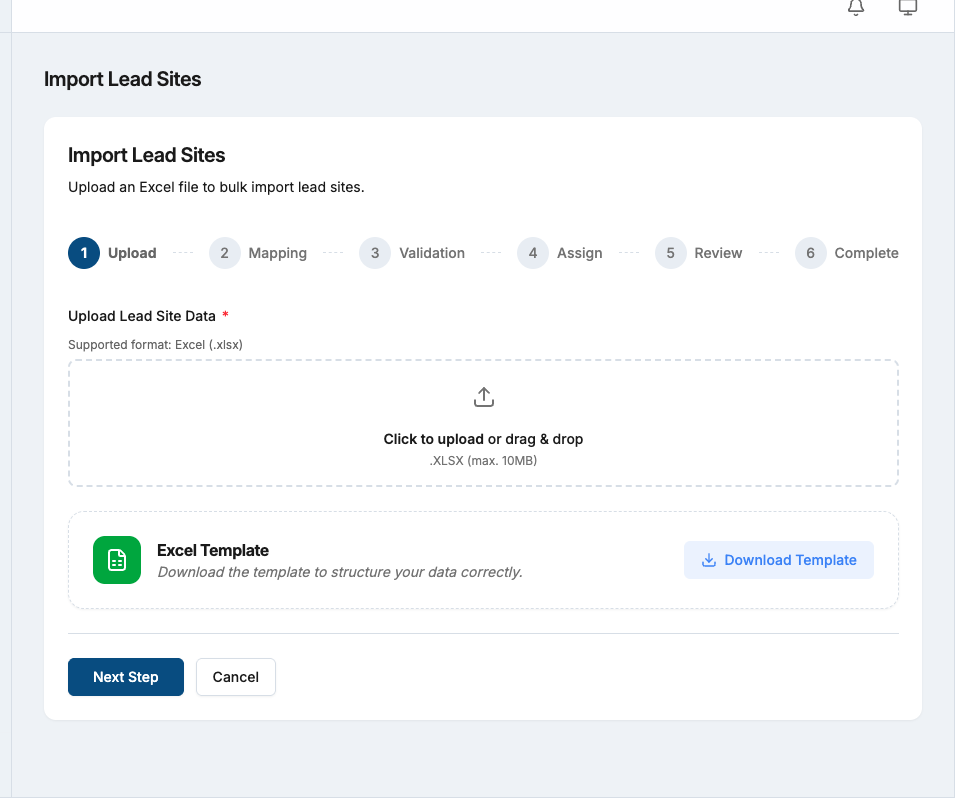
- Click Download Template to get the pre-formatted Excel file.
- Fill in your data in the template. Do not change the column headers.
- Save the file and upload it back in Proquiro.
- On the column mapping screen, confirm that each Excel column is matched to the correct Proquiro field. Adjust any mismatches using the dropdowns.
- Click Validate. Proquiro checks each row for errors and detects potential duplicates.
- If you’re an Admin or Manager with multiple team members, you’ll see the Assign step to distribute leads across your team. Field executives skip this step — leads are assigned to you automatically.
- Review the validation summary, resolve any duplicates, then click Import to finish.
Template columns
| Excel column | Proquiro field | Required |
|---|---|---|
Site Name | Lead site name | Yes |
Google Maps URL | Location (auto-detected) | Yes |
Owner Name | Landowner name | No |
Owner Phone | Landowner contact number | No |
Consultant Name | Broker / agent name | No |
Consultant Phone | Broker / agent contact number | No |
Only the site name and Google Maps URL are required. Everything else — area, survey number, pricing, financials, risk assessment — can be added later by editing each lead.
Tip: Start with the downloaded template rather than building your own spreadsheet — it guarantees the column headers match exactly what Proquiro expects, and includes an example row and an instructions sheet.
Automatic location detection
When you provide a Google Maps URL, Proquiro automatically:
- Extracts the GPS coordinates from the URL
- Resolves the state, district, sub-district, and village using its location database
- Places the lead on the map
If the location can only be partially resolved (e.g., the village isn’t found), the lead is still created — you can fill in the missing details later from the lead’s edit page.
Assigning leads to your team
Admins and Managers with multiple team members see an assignment step after validation:
- 10 or fewer leads — You’ll see a table where you can assign each lead individually using dropdowns, or click Distribute Evenly to split them across your field executives.
- More than 10 leads — The round-robin distributor is shown first. Select which team members should receive leads, click Distribute Evenly, then override individual assignments if needed.
Field Executives and single-user accounts skip this step entirely — all imported leads are assigned to you automatically.
Duplicate detection
During validation, Proquiro checks each row against your existing leads using both location proximity and name similarity. If a potential duplicate is found, you’ll see:
- The matching lead’s name and distance
- A similarity score
- Options to skip the row, or update the existing lead with the new data
Rows flagged as duplicates won’t be imported unless you explicitly choose how to resolve them.
Validation and errors
After clicking Validate, each row is marked as:
- Valid — ready to import
- Error — has a problem (e.g., missing site name, unreadable Google Maps URL)
- Duplicate — matches an existing lead (needs resolution)
You can download an error report as a CSV to see exactly what went wrong with each row. Fix the issues in your spreadsheet and re-upload, or proceed with just the valid rows — rows with errors are skipped automatically.
After import
Once the import completes, a summary shows how many leads were created. The new lead sites appear immediately on the Lead Sites page and on the map. Each imported lead starts in Inquiry status with your account’s default settings applied automatically.
From here, you can edit any lead to add details like area, survey numbers, pricing, and financial feasibility — just as you would with a manually created lead.
Who can import leads
All roles that can create leads can also import them (Admin, Manager, Field Executive). Lead Assistants cannot import. The import feature requires a Pro or Enterprise plan.