The lead lifecycle
Every lead in Proquiro moves through a series of statuses that reflect where it is in your acquisition pipeline. Keeping statuses current is one of the most important habits your team can build — it’s how everyone stays aligned on what’s active, what’s progressing, and what’s been shelved.
Statuses
| Status | Meaning |
|---|---|
| Inquiry | Newly identified site. Initial information gathering. |
| Shortlist | Site has passed initial screening and is worth a closer look. |
| Analysis | Due diligence, financial feasibility, and risk assessment in progress. |
| Offer | A formal offer has been made to the landowner. |
| Negotiation | Active price and terms negotiation with the landowner. |
| Closed | Deal completed successfully. |
| Dropped | Your team decided not to pursue this site. |
| Rejected | The landowner declined or the site is no longer viable. |
Tip: Mark a lead as Dropped rather than deleting it — you preserve the history, and you can always revisit it if market conditions change.
Changing status
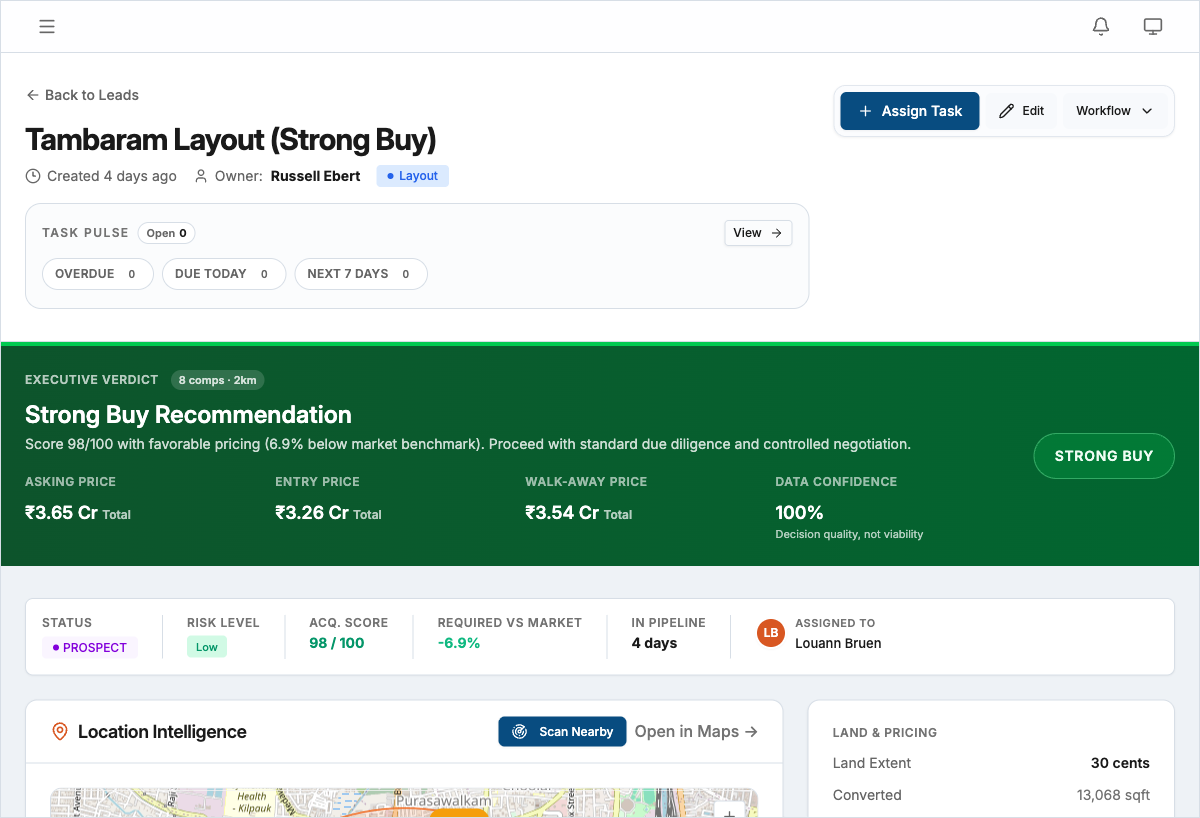
Click the status badge on a lead’s detail page to see available transitions. The transitions available depend on the current status — for example, you can move an Inquiry to Shortlist or Dropped, but not directly to Closed. This guardrail ensures leads follow a logical progression through your pipeline.
Who can change status
- Owners, Admins, and Managers can change any lead’s status
- Field Executives can change the status of leads assigned to them
- Lead Assistants cannot change lead status directly
Editing a lead site
Click Edit on the lead detail page to update any field — site name, location, area, survey number, owner details, or notes. Save your changes when done. Only users with create-lead permissions can edit lead details.
Tip: Update owner details and notes right after a site visit while the information is fresh.
Activity log
Every action on a lead — status changes, document uploads, task updates, notes — is recorded in the Activity tab on the lead detail page. Click Activity to view a chronological log showing who did what and when. This log cannot be modified or deleted, so it serves as a reliable audit trail for your team and leadership.